Processing Mass Add Attendance by Student

The Attendance Entry by Class/Activity/Range feature enables you to enter the same attendance record for multiple students at once. For example, this would be useful if multiple guardians called and left a message indicating their students are sick and you need to update the attendance records for all those students at once.

Scroll past the video to access the step-by-step instructions.

Before you begin

Audio Transcript

If you ever need to enter the same attendance record for individual students en masse, you can use the Attendance Entry by Class/Activity/Range feature. To begin this process, we will navigate to the Attendance Entry by Class/Activity/Range feature located within the Attendance module. For this example, we’ll add attendance records for two students at once. First, we will change the selection method to By Range, and then change the Student Selection Type to Individual Students. Then, we can select the student who we are adding attendance records for. The date fields default as the current date, which we do not need to change for this example. These attendance records will last all day, so we will check the All Day box. Since these two students were absent today, we will select unexcused absence as the Attendance Type for this example. Let’s select the Next option to proceed to the next screen, where we’ll see all the students whose attendance records will be updated. If we proceed to the next screen, we’ll see all the attendance records that will be added. Since we do not need to update any of these records, we will select Run Process to generate them. Now that you know how to process attendance records en masse by student, you can easily record attendance for specific students at the same time.

If you ever need to enter the same attendance record for individual students en masse, you can use the Attendance Entry by Class/Activity/Range feature. To begin this process, we will navigate to the Attendance Entry by Class/Activity/Range feature located within the Attendance module. For this example, we’ll add attendance records for two students at once. First, we will change the selection method to By Range, and then change the Student Selection Type to Individual Students. Then, we can select the student who we are adding attendance records for. The date fields default as the current date, which we do not need to change for this example. These attendance records will last all day, so we will check the All Day box. Since these two students were absent today, we will select unexcused absence as the Attendance Type for this example. Let’s select the Next option to proceed to the next screen, where we’ll see all the students whose attendance records will be updated. If we proceed to the next screen, we’ll see all the attendance records that will be added. Since we do not need to update any of these records, we will select Run Process to generate them. Now that you know how to process attendance records en masse by student, you can easily record attendance for specific students at the same time.


  1. Select Menu > Administrative Access > Attendance.
  2. Select Attendance Entry by Class/Activity/Range under Features.
    Expected Result

    You see the Attendance Entry by Class/Activity/Range Run History List.

  3. Click Attendance Entry by Class/Activity/Range near the top right of the screen.
    Expected Result

    You see the Attendance Entry by Class / Activity / Range screen.

  4. Complete the appropriate fields.
    Step Information

    Required fields are identified with an asterisk. You must complete required fields before you can save your work.

    1. Under the Students to Select heading, select the By Range option from the Selection Method drop-down list.
      Expected Result

      The Student Filters, Course Filters, Section Filters, and the associated advanced filters display.

    2. Under the Student Filters heading, select the appropriate radio button to indicate the Student Selection Type.
      Expected Result

      If you selected Range of Students, continue to the next sub-step.

      If you selected Individual Students, the Select Students field displays. Skip to sub-step d.

    3. Build the Student Filters if appropriate.
      Step Information
      This table is meant to be a reference for populating the Student standard filter. Any fields left blank populate all values. Entering information into the filter limits the results to those that match all of the criteria. If you wish to search for records that meet one set of criteria or a different set of criteria, you can add a new filter using the option at the bottom of the existing filter. This enables you to search for records that meet one of the filters' criteria. You can add up to 21 filters if needed.
      Field NameHow the Field WorksExample
      Student Processing ListsLimits the students who are included based on the selected processing lists.If you wish to include students from a processing list already filtered to only include the students on activity rosters for the spring and summer, you would enter that student processing list.
      Active Limits the students who are included in the filter based on their current enrollment status.If you wish to include students with an active enrollment status, select Yes from the drop-down list.
      Grad Year Limits the students who are included in the filter based on the selected Grad Years. If you wish to include students within a single grad year, you would enter that grad year.
      Grade Limits the students who are included in the filter based on the selected Grade Levels. If you wish to include students in grade 11 and grade 12, you would enter those grade levels.
      Student Type Limits the students who are included in the filter based on the selected Student Types. If you wish to include students with a designation of Regular, you would enter that student type.
      GenderLimits the students who are included in the filter based on the selected genders.If you wish to include only female students, check the box to the left of F - Female.
      Gender Identity Limits the students who are included in the filter to the records with a certain Gender Identity code. If you wish to only include students who are not male or female, you would enter the gender identity or identities.
      Cross Entity Course Scheduling Limits the students who are included in the filter based on whether they take Courses at other Entities in addition to their current entity. If you wish to include students who have enrolled in a course or courses at an entity other than the current entity, select Yes from the drop-down list.
      Graduated Limits the students who are included in the filter based on graduation status. If you wish to only include students who have not graduated, select No from the drop-down list.
      School Limits the students who are included in the filter based on the selected schools.If you wish to include students from a single school, you would enter that school.
      Homeroom Limits the students who are included in the filter based on the selected Homerooms. If you wish to include students in certain homerooms, you would enter those homerooms.
      AdvisorLimits the students who are included in the filter based on the selected advisors.If you wish to include students who have John Smith as an advisor, you would enter that name.
      CounselorLimits the students who are included in the filter based on the selected counselors.If you wish to include students who have John Smith as a counselor, you would enter that name.
      Activity Limits the students who are included in the filter based on the selected Activities. If you wish to include students who play tennis, you would enter that activity.
      Calendar Limits the students who are included in the filter based on the selected calendars.If you wish to include students attached to a particular calendar, you would enter that calendar.
      Graduation Requirement Year Limits the students who are included in the filter based on the selected Graduation Requirement Years. If you wish to include students within a particular range of graduation requirement years, enter the first year in the Low field and the last year in the High field.
      Default Entity Limits the students who are included in the filter based on the selected default Entity. If you wish to include students whose default entity is 101, you would enter entity 101.
      Student Number Limits the students who are included in the filter based on the selected student numbers.If you wish to include students with particular student numbers, you would enter those numbers.
      Last NameLimits the students who are included in the filter to the students whose last names fall between the low and high values entered. If you wish to only include students whose last names begin with the letter A through the letter F, enter A in the Low field and FZZZ in the High field.
      First NameLimits the students who are included in the filter to the students whose first names fall between the low and high values entered. If you wish to only include students whose first names begin with the letter G through the letter P, enter G in the Low field and PZZZ in the High field.
      Middle NameLimits the students who are included in the filter to the students whose middle names fall between the low and high values entered. If you wish to only include students whose middle names begin with the letter Q through the letter Z, enter Q in the Low field and ZZZZ in the High field.

      Method Of Instruction

      If you wish to include students attached to a particular method of instruction, you would enter that Method of Instruction Offering code.

      Primary Language

      Limits the students who are included in the filter based on their primary language of use.

      If you wish to view students with a particular primary language in order to provide translated messages, you would enter that language.

      Home Language

      Limits the students who are included in the filter based on the language used in their home.

      If you wish to view students with a particular home language in order to provide translated messages, you would enter that language.

      Students

      Limits the students who are included in the filter to the selected students.

      If you wish to include specific students, you would enter the appropriate student names.

      If you want to filter by other criteria, you can build the Advanced Filter. Skip to sub-step e.

    4. Enter one or more students in the Select Students field or click the Magnifying Glass icon to choose from the drop-down list.
      Step Information

      You can click outside of the selection box once you have made your selections.

    5. Under the Class Filters heading, build the Course Filters if appropriate.
      Step Information

      Grayed-out fields within the standard filter cannot be modified or utilized as a range.

      This table is meant to be a reference for populating the Course standard filter. Any fields left blank populate all values. Entering information into the filter limits the results to those that match all of the criteria. If you wish to search for records that meet one set of criteria or a different set of criteria, you can add a new filter using the option at the bottom of the existing filter. This enables you to search for records that meet one of the filters' criteria. You can add up to 21 filters if needed.
      Field NameHow the Field WorksExample
      School YearLimits the Courses that are included in the filter to only those that fall within the specified school year.If you only wish to include courses that would be available for a specific school year for scheduling purposes, you would select that school year.
      Course Code Range Limits the Courses that are included in the filter to only Course codes that fall between the low and high values entered. If you only wish to include a specific course within a set range as opposed to all Course codes, you can enter the Course code in both the low and high fields.
      Course LengthLimits the Courses that are included in the filter to only those that fall within the specified Course Length. If you only wish to include courses that are offered as a semester as opposed to all course lengths, you would select Semester.
      ActiveLimits the Courses that are included in the filter to only those that are Active, inactive, or includes both the active and inactive courses. If you only wish to include courses that are currently active for students to be scheduled into, you would select Yes.
      RequiredLimits the Courses that are included in the filter to only those that are Required, not required, or includes both the required and the elective courses. If you only wish to include courses that are not required by the school and can be taken as an elective, you would select No.
      Keep AttendanceLimits the Courses that are included in the filter to only those that Keep Attendance, do not keep attendance, or includes both courses that do and do not keep attendance. If you only wish to include courses that teachers can take attendance for, you would select Yes.
      Grade CourseLimits the Courses that are included in the filter to only those that are Graded courses, not graded courses, or includes both graded and non-graded courses. If you only wish to include courses that can be graded, you would select Yes.
      Course TypeLimits the Courses that are included in the filter to only those that fall within the specified Course Type. If you only wish to include courses that are offered as special education classes, you would select Special Ed.
      DepartmentLimits the Courses that are included in the filter to only those that fall within the specified Department. If you only wish to include courses within the Math department as opposed to all departments, you would select Math.
      CategoryLimits the Courses that are included in the filter to regular, lunch, study hall, or transfer courses.If you only wish to include courses that have a curriculum and grading system in place, you would select R - Regular.
      HonorsLimits the Courses that are included in the filter to only those that are Honors courses, non-honors courses, or includes both honors and non-honors courses. If you wish to include honors and non-honors courses, you would select Show all values.
      SubjectLimits the Courses that are included in the filter to only those that fall within the specified Subject. If you only wish to include courses that are offered for English and Art as opposed to all subjects, you would select English and Art.
      Exclude from Student Section Linking Limits the Courses that are included in the filter to only those that are Excluded from Student Section Linking, are not excluded from student section linking, or includes both courses that are and are not excluded from student section linking. If you only wish to include courses where the organization does not allow Sections of the course to be linked with another section on report cards and transcripts, you would select Yes.

      If you want to filter by other criteria, you can build the Advanced Filter.

    6. Build the Section Filters if appropriate.
      Step Information

      Grayed-out fields within the standard filter cannot be modified or utilized as a range.

      This table is meant to be a reference for populating the Section standard filter. Any fields left blank populate all values. Entering information into the filter limits the results to those that match all of the criteria. If you wish to search for records that meet one set of criteria or a different set of criteria, you can add a new filter using the option at the bottom of the existing filter. This enables you to search for records that meet one of the filters' criteria. You can add up to 21 filters if needed.
      Field NameHow the Field WorksExample
      School YearLimits the Sections that are included in the filter to only those that fall within the specified school year. If you only wish to include course sections that would be available for a specific school year, you would select that school year.
      Bell Schedule GroupLimits the Sections that are included in the filter to only those that fall within the specified Bell Schedule Group.If you only wish to include course sections that have the default bell schedule group attached, you would select Default.
      Section Code RangeLimits the Sections that are included in the filter to only those that fall within the specified Section codes. If you only wish to view sections 1, 2, and 3 for a course to verify their set up is correct, you would enter 01 and 03 in the Low and High fields.
      Section LengthLimits the Sections that are included in the filter to only those that fall within the specified Section Length. If you only wish to include course sections that are offered as a semester as opposed to all section lengths, you would select Semester.
      Exclude from Student Section LinkingLimits the Sections that are included in the filter to those that meet the specified criteria for student section linking. If you only wish to include course sections that are excluded from student section linking, you would select Yes.

      If you want to filter by other criteria, you can build the Advanced Filter.

    7. Under the Attendance Details heading, verify the Start Date or enter the correct date.
      Step Information

      This defaults to the current date, but can be modified as needed.

    8. Verify the End Date or enter the correct date.
      Step Information

      This defaults to the current date, but can be modified as needed.

      You can modify this field if the absence should span multiple days.

    9. Optional: Verify the box for All Day is checked or unchecked.
      Step Information

      You can use the All Day checkbox instead of using a start and end period for the attendance details. For example, if the seniors are going to be gone on an all-day field trip, the All Day checkbox can be used to add attendance records to each period that day. If students are going to be excused from only one period for a school function, then the Start Period and End Period can be used to signify which period will be missed.

      Expected Result

      When checked, the Start Period and End Period fields are disabled. Skip to sub-step l.

      If you did not check the box, continue to the next sub-step.

    10. Enter the Start Period
      Step Information

      This indicates the period when the attendance record should start.

    11. Enter the End Period.
      Step Information

      This indicates the period when the attendance record should end.

    12. Enter the Attendance Type.
      Step Information

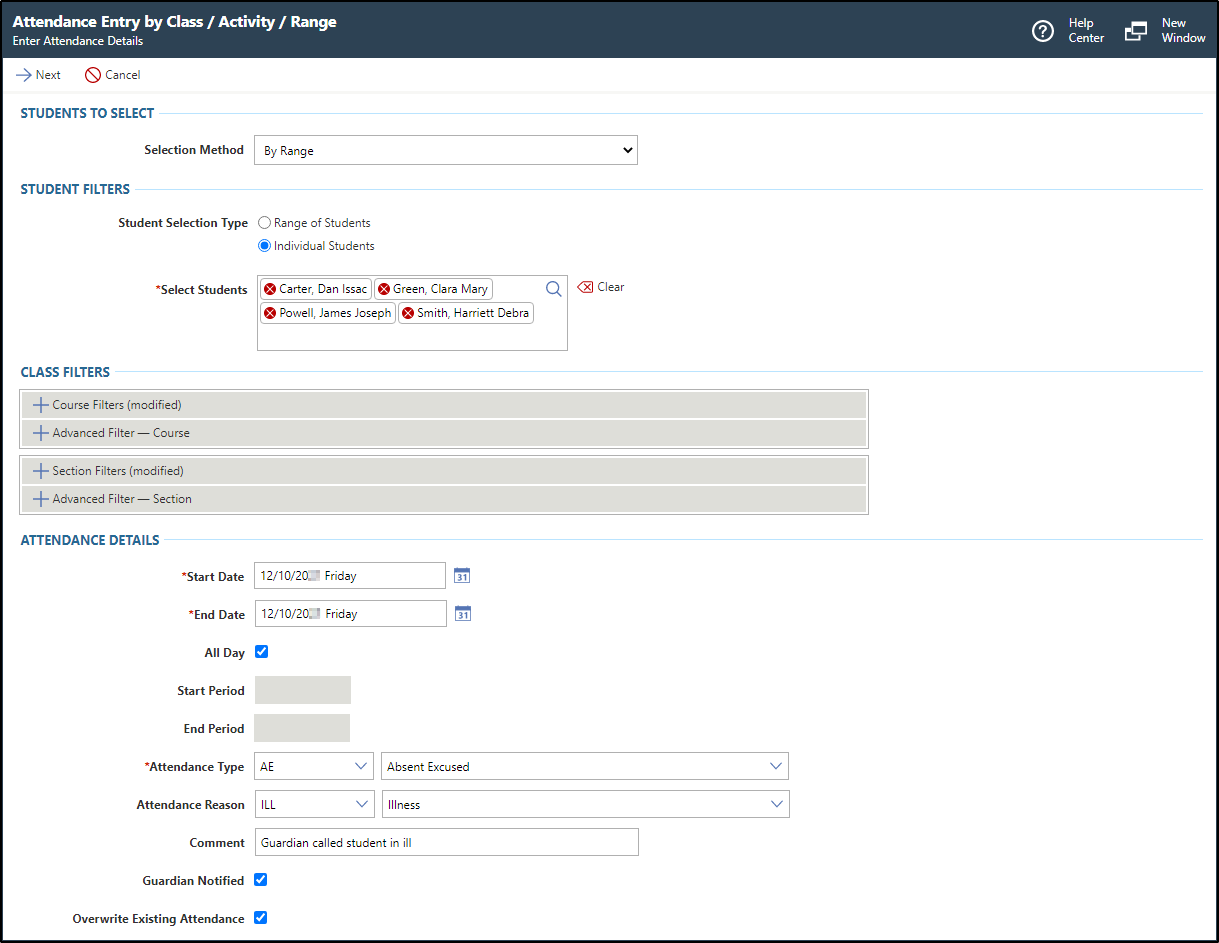
      For example, you could enter Excused.

    13. Optional: Enter the Attendance Reason.
      Step Information

      For example, you could enter Illness.

    14. Optional: Enter a Comment for the attendance record if you wish to track additional information about the attendance record.
      Step Information

      For example, you could enter "Guardian called student in ill."

    15. Optional: Verify the box for Guardian Notified is checked or unchecked.
      Step Information

      For example, if the guardian called and left a message about the student's absence, you would check this box.

      This field can be used as a filter on reports to only print records where the Guardian Notified box was not checked, so that office personnel can generate a list of guardians to call to confirm student absences.

    16. Optional: Verify the box for Overwrite Existing Attendance is checked or unchecked.
      Step Information

      When checked, any attendance records for the selected students and dates are changed. For example, if students were previously scheduled to go on a field trip, checking this box would update their records appropriately.

      When unchecked, any existing attendance records for the selected dates are not modified.

      Expected Result

      In the image below, the class attendance record details display individual students where their guardians called in specifying student illnesses.


    17. Click Next near the top left of the screen.
      Expected Result

      You see a list of students who fit the selection criteria from the previous screen.

    18. Uncheck the box to the left of each student you do not wish to add attendance for.
      Step Information

      You can uncheck the box at the top of the Select column to uncheck all students. You can then select individual students you wish to include by checking the box to the left of their name.

    19. Click Next near the top left of the screen.
      Expected Result

      You see the student records to be created or updated, which includes details about any previous attendance records as well as the new details. This allows you to determine whether to overwrite the attendance records that currently exist for the students.

    20. Uncheck the box to the left of each student you do not wish to create or update attendance records for.
      Step Information

      You can uncheck the box at the top of the Select column to uncheck all students. You can then select individual students you wish to include by checking the box to the left of their name.

    21. Click Next near the top left of the screen.
      Expected Result

      You see the number of student attendance records to be created or updated.

  5. Click Run Process near the top left of the screen.
    Step Information

    The system creates a run history record each time you process the Attendance Entry by Class/Activity/Range feature.

  6. Click Done near the top left of the screen.
    Expected Result

    You return to the screen you were previously on.

Result(s)

You have successfully recorded attendance for multiple students by student range.