Processing Mass Add Attendance by Method of Instruction
Scroll past the video to access the step-by-step instructions.
Before you begin
-
The attendance types and attendance reasons you wish to use must exist.
-
Students must be scheduled into classes.
-
The method of instructions must be assigned to students.
-
Verify you are in the correct Entity and school year by checking the information at the top left of the screen.
Audio Transcript
If you ever need to enter the same attendance record for multiple students in the same grade who are all taught with the same method of instruction, you can use the Attendance Entry by Class/Activity/Range feature. To begin this process, we’ll navigate to the Attendance Entry by Class/Activity/Range feature located within the Attendance module. For this example, we’ll add attendance records for the in person high school students since they are going on a field trip, so we will first select By Method of Instruction for Grade Levels Selected as the Selection Method. Then, we’ll select In Person as the method of instruction to select students by. The date fields default as the current date, which we do not need to change for this example. Since this field trip will last all day, we will check the All Day box, and since this field trip is sponsored by the high school, we’ll select School Function as the Attendance Type. We’ll also select Field Trip as the Attendance Reason to further define the attendance records. Let’s select the Next option to proceed to the next screen, where we will see all the students whose attendance records will be updated. If we proceed to the next screen, we’ll see all the attendance records that will be added. Since we do not need to update any of these records, we will select Run Process to generate them. Now that you know how to process attendance records by method of instruction for grade levels, you can easily record attendance for students en masse.
If you ever need to enter the same attendance record for multiple students in the same grade who are all taught with the same method of instruction, you can use the Attendance Entry by Class/Activity/Range feature. To begin this process, we’ll navigate to the Attendance Entry by Class/Activity/Range feature located within the Attendance module. For this example, we’ll add attendance records for the in person high school students since they are going on a field trip, so we will first select By Method of Instruction for Grade Levels Selected as the Selection Method. Then, we’ll select In Person as the method of instruction to select students by. The date fields default as the current date, which we do not need to change for this example. Since this field trip will last all day, we will check the All Day box, and since this field trip is sponsored by the high school, we’ll select School Function as the Attendance Type. We’ll also select Field Trip as the Attendance Reason to further define the attendance records. Let’s select the Next option to proceed to the next screen, where we will see all the students whose attendance records will be updated. If we proceed to the next screen, we’ll see all the attendance records that will be added. Since we do not need to update any of these records, we will select Run Process to generate them. Now that you know how to process attendance records by method of instruction for grade levels, you can easily record attendance for students en masse.
-
Complete the appropriate fields.
Step Information
Required fields are identified with an asterisk. You must complete required fields before you can save your work.
-
Optional: Verify the box for Overwrite Existing Attendance is checked or unchecked.
Step Information
When checked, any attendance records for the selected students and dates are changed. For example, if you previously entered an absence for a student to go to an appointment, but now the student is able to complete their work and still attend the appointment, you could check this box.
When unchecked, any existing attendance records for the selected dates are not modified.
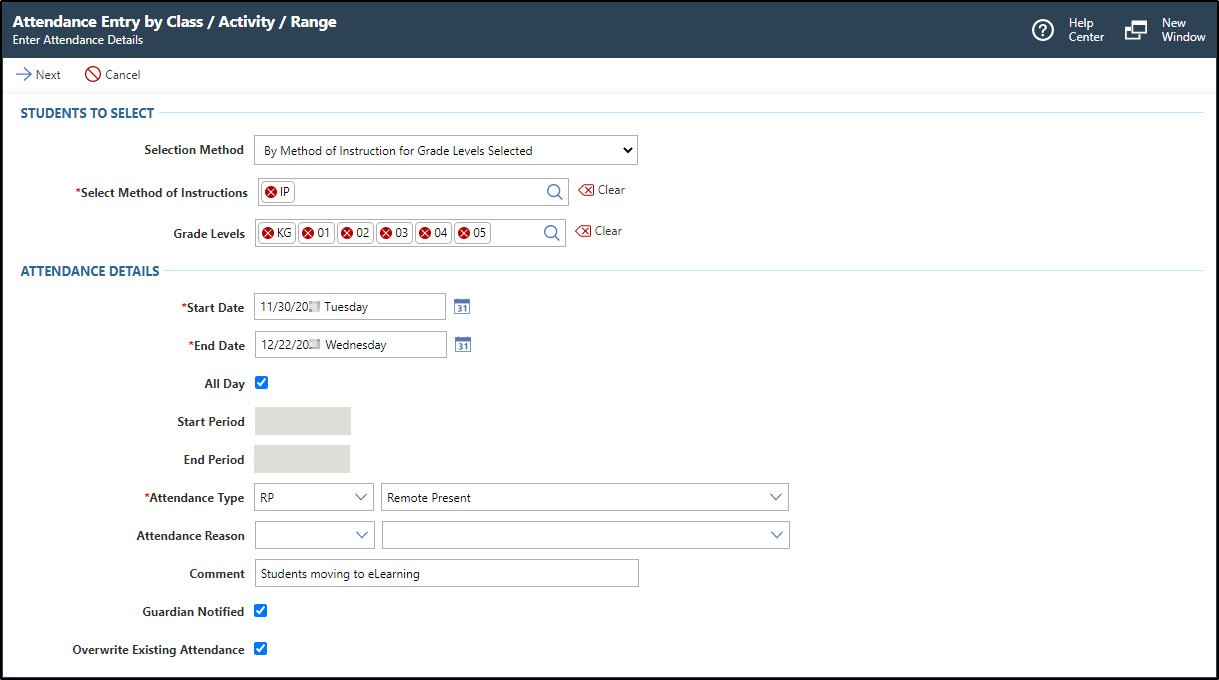
Expected ResultIn the image below, the class attendance record details display an attendance record of Remote Present being added to students who have an In Person method of instruction from November 30 through December 22.
-
Optional: Verify the box for Overwrite Existing Attendance is checked or unchecked.
Result(s)
You have successfully recorded attendance for multiple students by method of instruction.