Report Designer Options
The table below the image is intended to help you navigate the options within a Main Section or Details Section of the Report Designer. You can access the Report Designer by navigating to
and then selecting Report Manager under Features.
Click the drop-down icon to the left of the desired report and then select Design Report from the
Record Options drop-down menu.
These options will be covered more extensively later in this course.
The image below displays the report designer options within the Name main section of the Monthly Birthday Report.
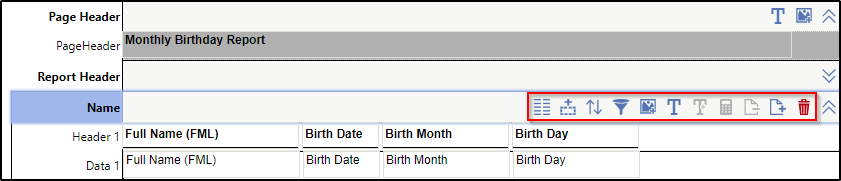
| Icon | Name | Description |
|---|---|---|
| Multi Column Section | Multi-Column Section | Enables you to add and configure columns on the report. For example, you may add two columns that are one inch apart. |
| Report Detail | Details Section | Enables you to add a new section that is directly related to the main section of the report. For example, you may want to add a details section for student fees within the Student main section. |
| Sort | Section Sorts | Enables you to change the order in which the data will display when the report is run. For example, you may choose to sort the report by last name in descending order. |
| Filter | Filter | Enables you to further define the intended parameters of the report. For some reports, you may want to only include students from entity 100. |
| Insert Image | Image | Enables you to add an image field to the selected section of the report. For example, you may wish to include a logo on the report. |
| Text | Text | Enables you to add a text field to the selected section of the report. For example, you may wish to add a text field for Page Number, which will display beside the actual number on the report. |
| Add Form Text | Form Text | Enables you to add a form text field to the selected section of the report. For example, you may wish to add a form text field for Age, which will display beside the birth day on the actual report. |
| Calculator | Aggregate Math | Enables you to perform math between two fields within a Section Aggregate Line. For example, you can sum two amount type fields to obtain the combined value. |
| Remove Report | Remove Report Line | Enables you to delete a report line. For example, you may want to remove a Report Footer. |
| Add Report Line | Add Report Line | Enables you to add a report line. For example, you may want to include a Sort Header Line or Totals Line. |
| Trash Can | Remove Section | Enables you to remove the selected section from the report. You may remove a Main Section or Details Section of the report. |