Report Line Formatting/Properties
You can update the properties and formatting of lines on reports within the Report Designer area by navigating to and selecting Report Manager under Features. From the Report Manager screen, you can identify the report for which you want to modify line properties and formatting. Then, you can click the drop-down icon for that report and select Design Report from the Record Options drop-down menu. If the report was created by Skyward, you must clone the report before you can access the Design Report option.
-
Line Formatting
-
Line Properties
-
XML Report Type Properties
Line Formatting
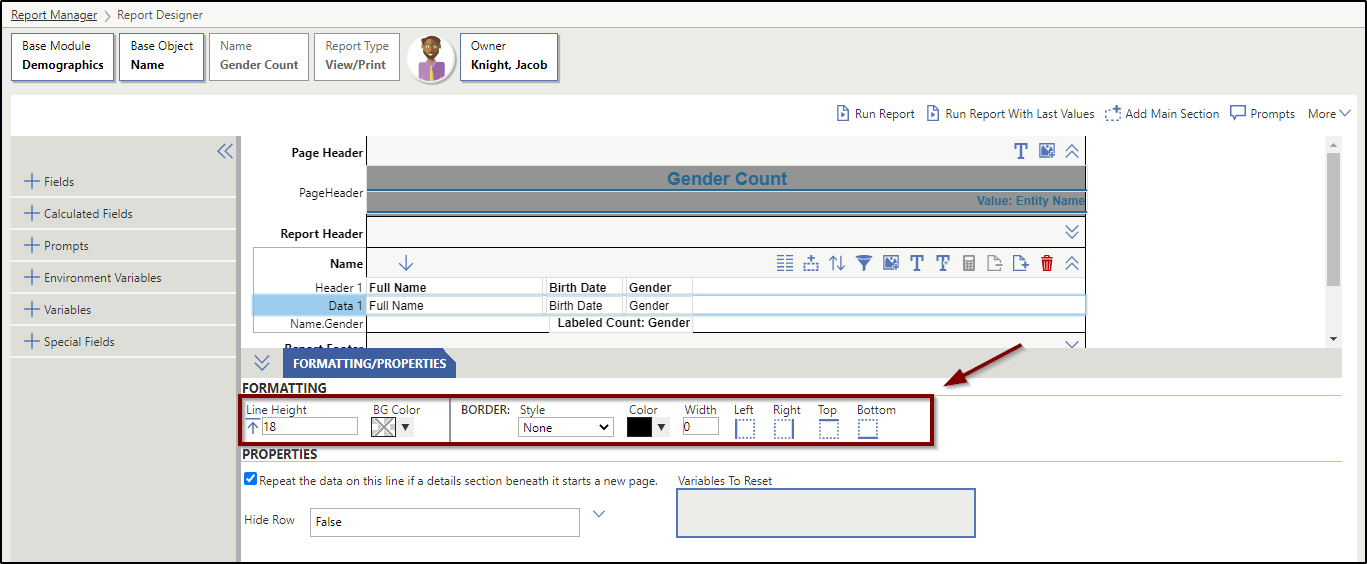
The image below displays the Formatting area of the Report Designer for a report line. The table following the image is intended to help you customize the formatting for lines on your reports.
| Formatting Option | Description | Additional Information |
|---|---|---|
| BG Color | The background color for the selected line. | This defaults to transparent. |
| Border | Enables you to create a border around the selected line. | If you add a border, you can choose its color, width, and whether it appears on the left, right, top, or bottom of the report. |
| Line Height | Enables you to adjust the height of the selected line. | The default line height for lines within the main section or details section is 18 pixels. The default line height for lines within the header or footer is 22 pixels. |
Line Properties
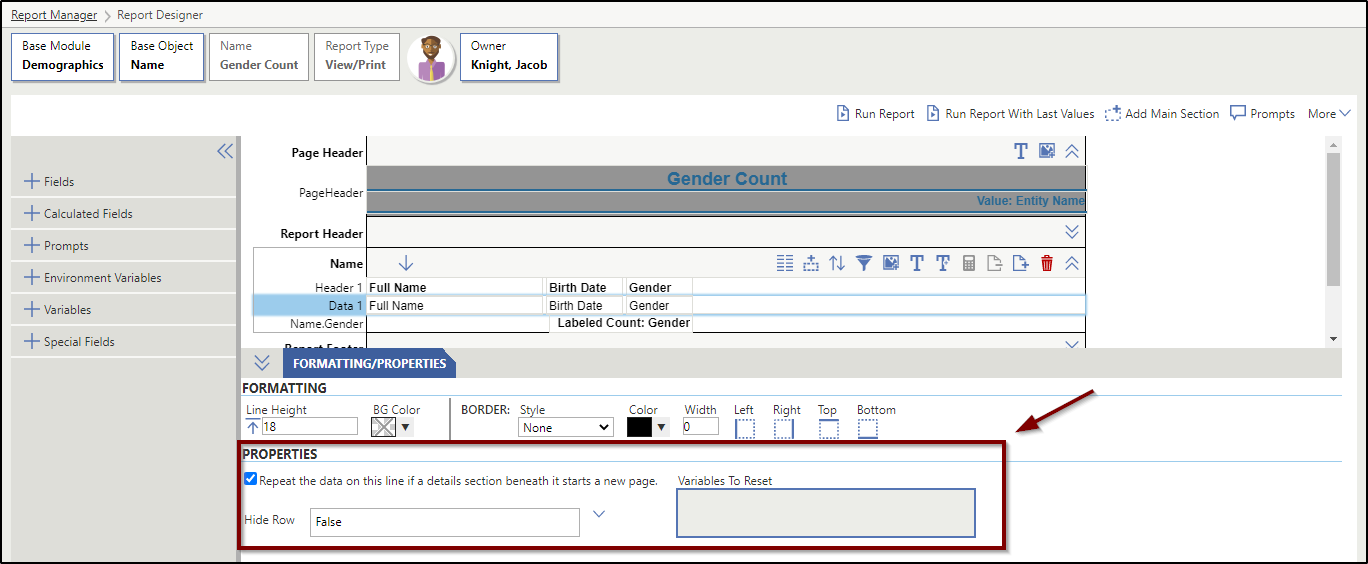
The image below displays the Properties area of the Report Designer for a report line. The table following the image is intended to help you customize the properties for lines on your reports.
| Property Option | Description | Additional Information |
|---|---|---|
| Hide this Row | Enables you to determine if the line will be hidden on the printed report. | False - The line will appear on the report. True - The line will not appear on the report. Hidden items are marked with vertical, red lines on the Report Designer. Detail Sections Have Any Rows - This option is only available if the current row is a sort aggregate row on the primary key field of the section and the section has at least one detail section. This enables you to determine whether the row should show depending on if the detail sections pull any data. Add Prompt - This will add a prompt to the report, which enables the user who runs the report to choose whether the line should appear. Items that display conditionally on a report are marked with diagonal, yellow lines on the Report Designer. |
| Print at Bottom of Page | Enables you to determine if the Total line or Aggregate Section line will print at the bottom of the page on the report or in the location where it was inserted. |
This property is only available if a Totals Line or Aggregate Section Line is selected. True - The line will print at the bottom of the page on the report and include totals for that page. False - The line will appear normally on the report and include totals for only the indicated data set. Add Prompt - This will add a prompt to the report, which enables the user who runs the report to choose whether the line should print normally or at the bottom of the report. |
| Print on New Page | Creates a page break before the report footer line is printed on the report |
This property is only available if the report footer line is selected. True - The system will create a page break before printing the report footer line on the report. All of the data contained within the report footer line will print at the top of the last page after the page header. False - The system will not create a page break before printing the report footer line on the report. All of the data contained within the report footer line will print at the bottom of the last page of the report. Add Prompt - This will add a prompt to the report, which enables the user who runs the report to choose whether a page break will be inserted before printing the report footer line on the report. |
| Repeat Header Line for each Data Line | When checked, the header line will appear above each line of data. | This property is only available if a header line is selected. |
| Repeat line at top of every relevant page | Enables you to determine if the selected line should appear on each page that contains data related to the header. | This property is only available if a header line is selected. True - The header line will be repeated at the top of every relevant page. False - The header line will not appear at the top of every relevant page. Add Prompt - This will add a prompt to the report, which enables the user who runs the report to choose whether the header line will appear at the top of every relevant page. |
| Repeat the data on this line if a details section beneath it starts a new page | When checked, the data in the selected line will repeat if the details overflow onto a new page of the report. | This property is only available if a data line is selected. |
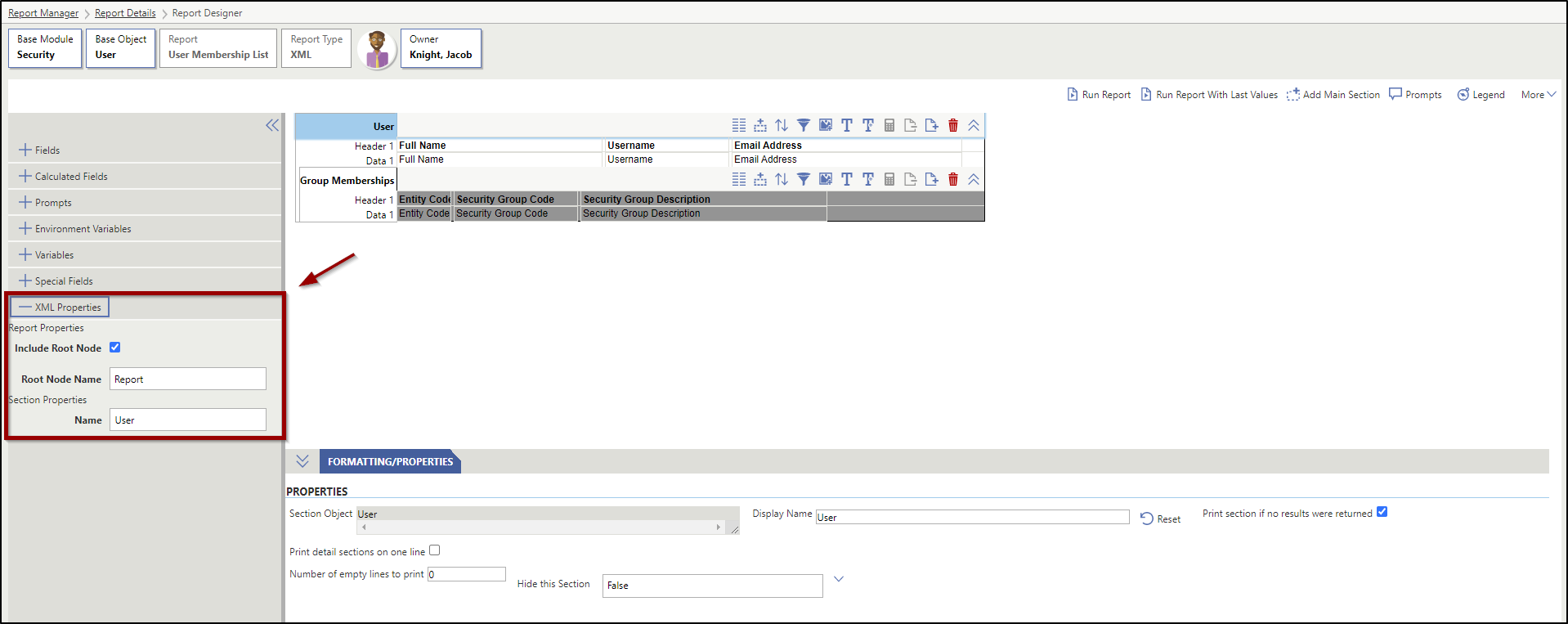
XML Report Type Properties
| Property Option | Description | Additional Information |
|---|---|---|
| Report Properties Include Root Node | Indicates if the top-level node of the XML should appear when the report is generated. This defaults to True and can only be unchecked if there is only one main section on the report. | This option is only available if the Report Type is set as XML. |
| Report Properties Root Node Name | Sets the name for the root node in the XML. This defaults to the main section of the report that you are working in. | This option is only available if the Report Type is set as XML. |
| Row Properties Name | Enables you to change the name of the line. | This option is only available if the Report Type is set as XML. The name of each line is used as a parent element that contains the elements within that line. |