Report Section Formatting/Properties
You can update the properties of sections on reports within the Report Designer by navigating to and then selecting Report Manager under Features. From the Report Manager, you can click the drop-down icon to the left of the report you wish to update, and then select Design Report from the Record Options drop-down menu. If the report was created by Skyward, you must clone the report before you can access the Design Report option.
-
Section Properties
-
XML and JSON Report Type Properties
Section Properties
The image below displays the properties area of the Report Designer for a report section. The table following the image is intended to help you customize the properties for sections on your reports.
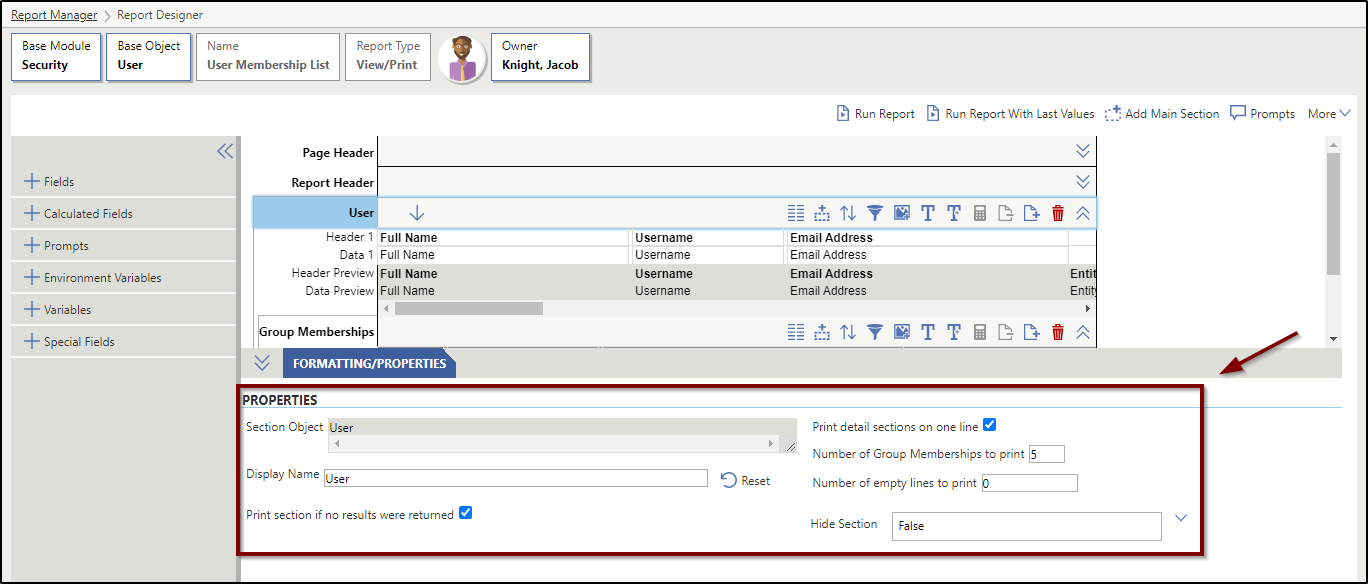
| Property Option | Description | Additional Information |
|---|---|---|
| Display Name or Display/File Name | The title of a main section or aggregate section on the report. | If the Zip Main Sections box was checked when the report was created, when designing the report you will see the Display/File Name field. If the Zip Main Sections box was not checked when the report was created, you will see the Display Name field. This name does not display on the report; it only displays when you are designing the report and enables you to have a recognizable heading for that section. |
| Hide Section | Enables you to determine if the section will be hidden on the printed report based on a prompt. |
False - The section will appear on the report. True - The section will not appear on the report. Hidden items are marked with vertical, red lines on the Report Designer. Add Prompt - This will add a prompt to the report, which enables the user who runs the report to choose whether the section should appear. Items that display conditionally on a report are marked with diagonal, yellow lines on the Report Designer. For example, if you select a prompt for Hide Name Details that is Equal To True, when the prompt is set to True, the section will not print on the report. This will only work for prompts that have true/false results. |
| Number of (Detail Section) to print | Enables you to determine how many columns will display and is the maximum number of records for a single line for this data element. | This field only displays if you have enabled the Print detail sections on one line property. For example, if you have a detail section of phone numbers and set this to 3, then three sets of columns will be available to populate on the report regardless of the number of phone numbers attached to the individual. |
| Number of Empty Lines to Print | Indicates how many empty lines show for the section when the report is generated and there is no data to otherwise display. | This property is only available when the "Print section if no results were returned" checkbox is enabled and applies to all Report Types. |
| Print detail sections on one line | When checked, this specifies that all data for a single record will display on a single row for the detail section. | This option is located on any detail section's properties, but can only be configured on the parent detail section. When checked, the system also prompts you for the Number of (Detail Section) to print. |
| Print section if no results returned | When checked, the section still prints on the report even if no data was returned from the system for the section. | This property is only available if a section line is selected. When checked, the system also prompts you for the number of empty lines to print. This will print the header lines, the number of empty lines, and footer lines. |
| Relationship Path | Displays the field location of the aggregate field in the software. | Displays for detail sections of the report. |
| Section Object | This is the software object location for the section. | Displays for main sections of the report. |
XML and JSON Report Type Properties
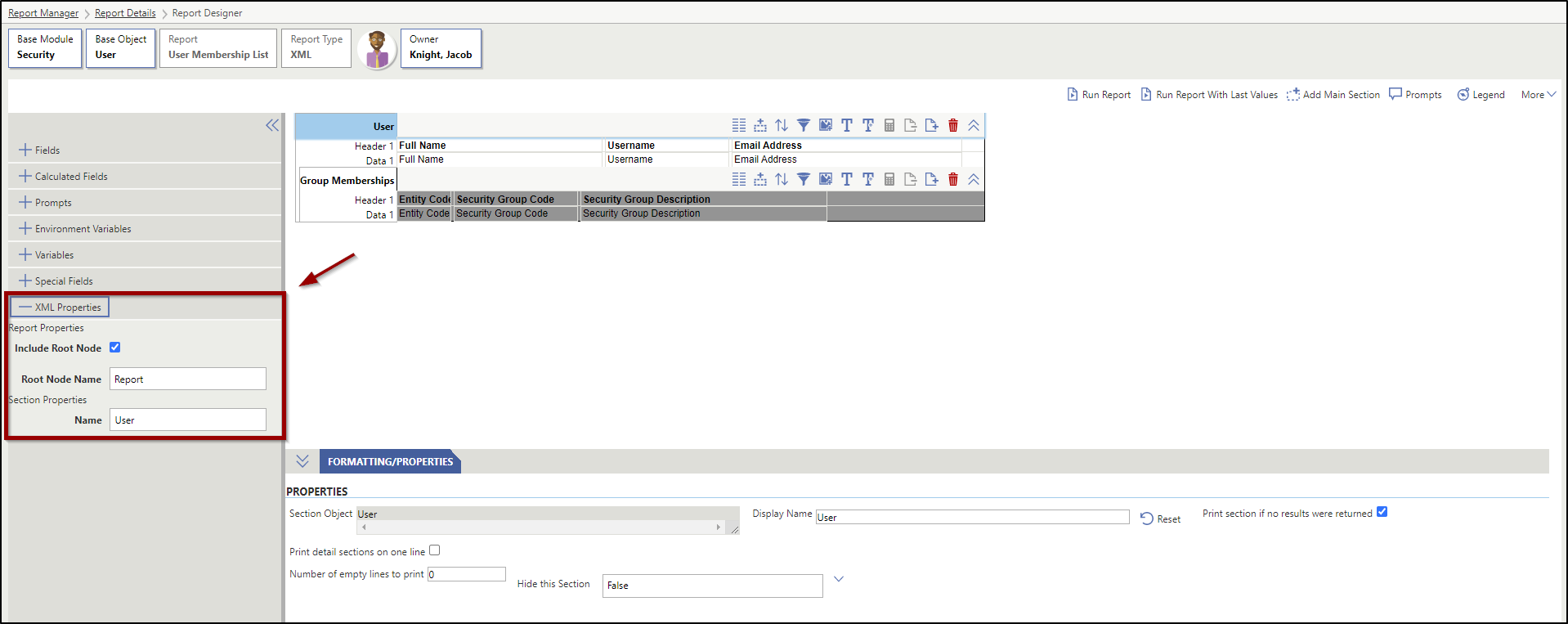
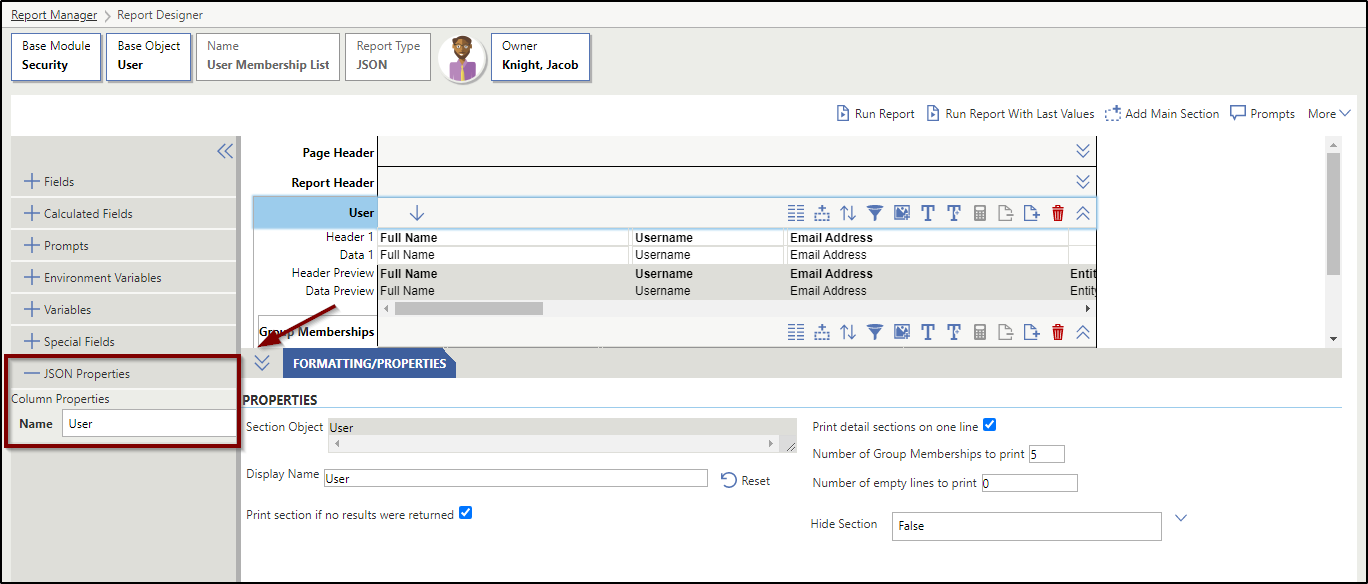
| Property Option | Description | Additional Information |
|---|---|---|
| Column Properties Name | Sets the name part of the name value pair related to the column. This is defaulted to the value you see in the column on the designer. | This option is only available if the Report Type is set as JSON. This property can only be set on the Section Header of a main section or details section. |
| Report Properties Include Root Node | Indicates if the top-level node of the XML should appear when the report is generated. This defaults to True and can only be unchecked if there is only one main section on the report. | This option is only available if the Report Type is set as XML. |
| Report Properties Root Node Name | Sets the name for the root node in the XML. This defaults to the main section of the report that you are working in. | This option is only available if the Report Type is set as XML. |
| Section Properties Name | Sets the element name for the section in the XML. This defaults to the Display Name in the section properties. | This option is only available if the Report Type is set as XML. |