Report Field Formatting/Properties
You can update the properties and formatting of fields on reports within the Report Designer by navigating to , and then selecting Report Manager under Features. From the Report Manager, you can click the drop-down icon to the left of the report you wish to update, and then select Design Report from the Record Options drop-down menu. If the report was created by Skyward, you must clone the report before you can access the Design Report option.
If you would like to apply the same formatting or properties to multiple fields at once, you can press and hold Ctrl on your keyboard and then click the fields you would like to format. You can choose fields from multiple lines and sections if necessary. Only the formatting and properties that can be customized for multiple fields at once will display. For example, you cannot customize the Custom Text field for multiple fields at a time, so it will not display if you have selected multiple fields for formatting.
-
Field Formatting
-
Field Properties
-
Aggregate Type Field Options
-
Field Properties for Non-View/Print Report Types
Field Formatting
The image below displays the Formatting area of the Report Designer for a report field. The formatting options that display in the Report Designer can often be prompted by your selections for other options, such as the Format Text field displaying based on the Data Type Format selected.
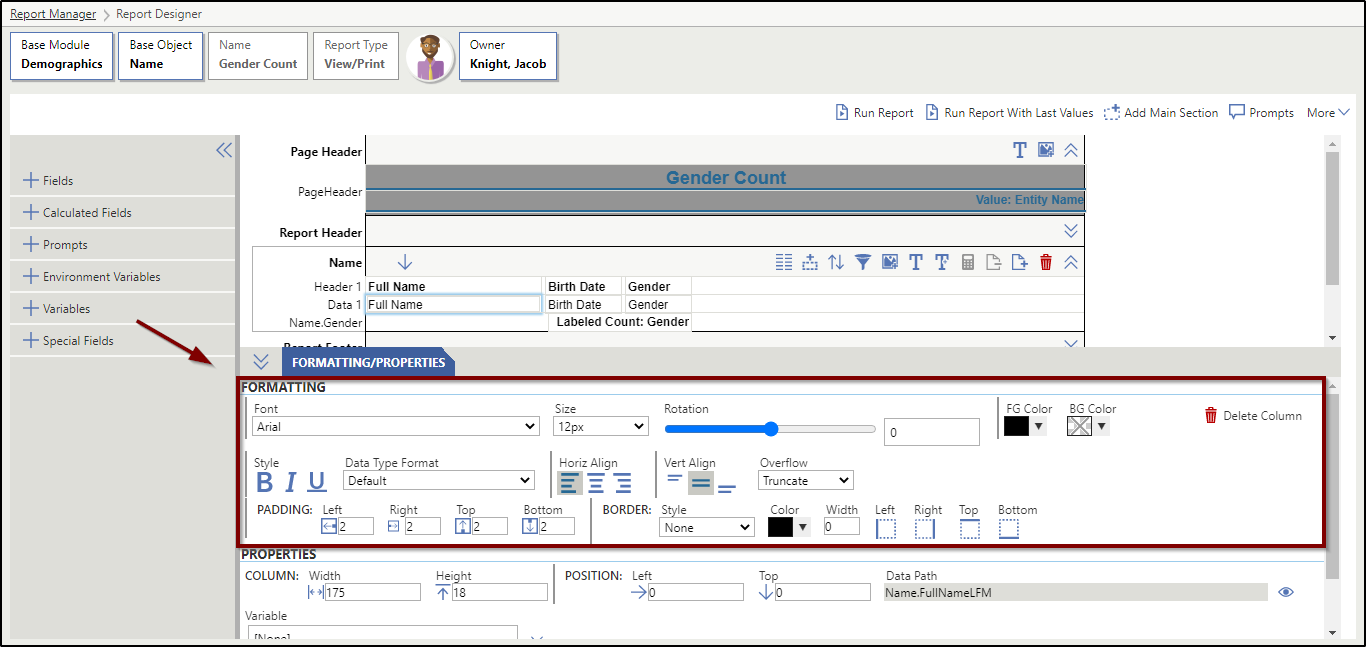
The following table is intended to help you customize the formatting for fields in your reports.
| Formatting Option | Description | Additional Information |
|---|---|---|
| Font | The type of lettering of the field to be used on the report. | N/A |
| Size | The size of the text to be used for the field on the report. | Only font sizes between 4px and 56px can be used. |
| Rotation | The degree of rotation for the field on the report. | The slider or textbox can be used to update the amount of rotation. Values of -180 to 180 degrees are accepted. |
| FG Color | The foreground color of the field on the report. This is the actual color of the written text. | This defaults to black. |
| BG Color | The background color of the field on the report. | This defaults to transparent. |
| Style | Bolds, underlines, or italicizes the text for the field on the report. | N/A |
| Data Type Format | Formats a particular data field. | For example, if you have a field of Birth Date, you could choose a Data Type Format of Date. The Data Type Format is available for all data fields, but it can only be applied to applicable fields, such as date or numeric fields. The Data Type Format can also be used to copy details from existing fields in the software. For example, if you are pulling GPA for students, you can set the field to display the number of decimal places based on the values set in the District Group Configuration of the Grading module of the software. If you select the Data Type Format of Advanced, you can format how the field displays to your preferred settings using the Format Text field that displays. If you select the Data Type Format of Enumeration, you can format how the enumeration field data appears on the report. If you select the Data Type Format of Hyperlink, you can create hyperlinks that will display on the report. You can customize the Display Text of the hyperlink to view the report within the software, or download the report and access the hyperlink in either .xlsx or .pdf file formats. |
| Default Scheme | Enables you to select None, HTTP, or HTTPS for the default scheme of the displaying hyperlink. | This option only displays when the Data Type Format of Hyperlink is selected. |
| Display Text | Enables you to customize the hyperlink text. | This option only displays when the Data Type Format of Hyperlink is selected. |
| Format | Changes the way your data displays on the report based on the Data Type Format. | The Format option is only available for the Data Type Formats of Date, Time, Date Time, Enumeration, Time Span, and Boolean. For example, if you have a Data Type Format of Date for the Birth Date field, you could choose how to display the information, such as MM/DD/YY, MM/DD/YYYY, or YYYY-MM-DD. If you have a Data Type Format of Enumeration, you could choose Code - Display Value to display the information. |
| Format Text | Changes the way your data displays on the report based on the Data Type Format. | The Data Type Format must be set to Advanced for this field to display. The advanced format can be applied to any date, datetime, numeric, timespan, or boolean field. For example, if you want the field to display eight characters, you would enter 00000000 to force every value exported to have exactly eight characters. You can also customize the date format if you wish. For example, if the hard-coded date format option does not match what you need, you can enter your preferred date format, such as DD/MM/YYYY. For a boolean field, the C# programming language must be used, so you would enter C# for this field. |
| Precision | Indicates how many numbers will be present after the decimal for the field. | The Data Type Format must be set to Decimal, Currency, or Percentage for this field to display. For example, if you selected Currency as the Data Type Format and set the Precision to 2, there would be two integers representing the cents for the field. |
| Horiz Align | Aligns the text in the field horizontally, to the left, center, or right. | If you want to align the field horizontally over the entire page of the report, the field needs to be sized to the entire width of the report section. |
| Vert Align | Aligns the text in the field vertically, to the top, middle, or bottom. | N/A |
| Overflow | Indicates whether field data should be truncated or expanded if data does not fit within the size of the field. | This allows a field to expand vertically, but not horizontally. For example, as you add more text, it will wrap to multiple lines causing the field to expand vertically. |
| Padding: Left, Right, Top, Bottom | The margin between the edge of the field and the printed data. This can be adjusted for the left, right, top, and bottom. | This field is measured in pixels. |
| Border: Style | Enables you to select the type of border to appear around the field on the report. | N/A |
| Border: Color | The color of the border used around the field on the report. | N/A |
| Border: Width | The width of the border to be used around the field on the report. | This field is measured in pixels. |
| Border: Left, Right, Top, Bottom | Enables you to select which edge of the field the border should appear around. | N/A |
Field Properties
The image below displays the Properties area of the Report Designer for a report field. The options that display can be determined by either the report type or the field you select on the report.
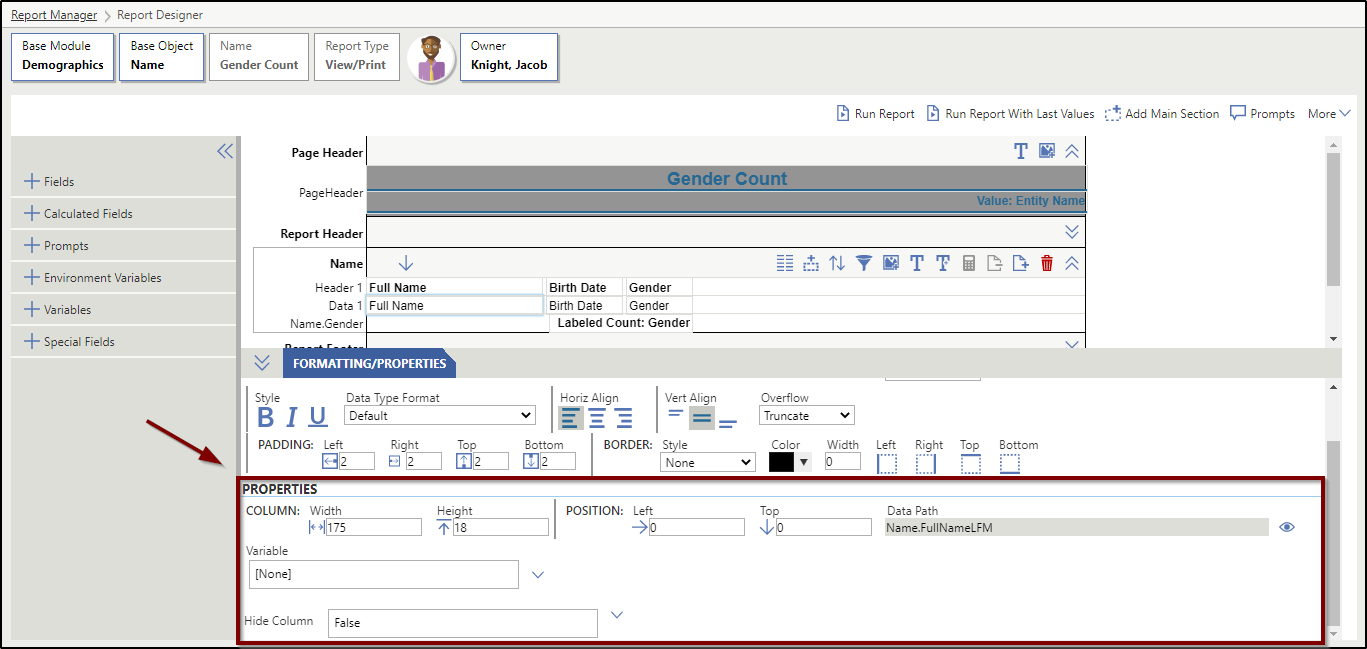
The following table is intended to help you customize the properties for fields in your reports. All fields in the table display for a field, regardless of the type of field selected, unless specified in the Additional Information column of the table.
| Property Option | Description | Additional Information |
|---|---|---|
| Column: Width | The width of the selected field on the report. | This field is measured in pixels. |
| Column: Height | The height of the selected field on the report. | This field is measured in pixels. |
| Position: Left | The horizontal position of the selected field from the left edge of the report. | This field is measured in pixels. You can adjust the number here or move the field within its section of the Report Designer, which will automatically adjust the number. |
| Position: Top | The vertical position of the selected field from the top edge of the report. | This field is measured in pixels. You can adjust the number here or move the field within its section of the Report Designer, which will automatically adjust the number. |
| Data Path | Shows where in the system the field data is pulled from. | You cannot edit this field. You can click the View icon to view the field in the data panel at the left of the screen. |
| Aggregate Type | Determines what type of data will print for the field. The type of field you add to a Section Aggregate Line or a Sort Aggregate Line determines what Aggregate Types are available. | This option only displays for fields within a Section Aggregate Line or a Sort Aggregate Line. These lines enable you to make calculations on fields that have been added to your report in the data section. The following options are available for selection: Average, Alphabetic Max, Alphabetic Min, Date Time Max, Date Time Median, Date Time Min, Concatenate All, Concatenate All Exclude Blanks, Concatenate Distinct, Concatenate Distinct Exclude Blanks, Count, Distinct Count, Labeled Count, Last Non Blank Record Value, Last Record Value, Median, Numeric Max, Numeric Min, Sort Subtotals Label, Standard Deviation, Sum, Time Span, and Variance. For more information about each option, reference the Aggregate Type table below. |
| Delimiter | Specifies which character divides values for the aggregate field on the report. | This option only displays if the Report Type is set as CSV/Delimited and if the Aggregate Type is set to Concatenate All, Concatenate All Exclude Blanks, Concatenate Distinct, or Concatenate Distinct Exclude Blanks. |
| Custom Text | Enables you to enter the text you would like to use as a column header for this field. | This option will not display for Calculated Fields or Aggregate Type Fields. |
| Display As Running Total | If checked, the report will generate a running total of the values contained within this field. | This option will only display for Amount Type fields. If checked, you must select an option for the "Reset on change of" field. |
| Reset on change of | Determines how the system will reset the running total. | This option only displays if you have checked Display As Running Total. |
| Hide this Column | Indicates whether the column of the report containing this field should be hidden from the report. | False - The column containing this field will display on the report. True - The column containing this field will not display on the report. Hidden items are marked with vertical, red lines on the Report Designer. Add Prompt - This will add a prompt to the report, which enables the user who is running the report to choose whether the column containing this field should display on the report. Items that display conditionally on a report are marked with diagonal, yellow lines on the Report Designer. Select Field - This indicates the column will be hidden based on the value of another field. When this option is selected, you must select the field, a condition, and the value. For example, you may select to hide the column when the Gender field is equal to male. Items that display conditionally on a report are marked with diagonal, yellow lines on the Report Designer. Current Column Value - This indicates the column will be hidden based upon the value for the selected field. For example, if the field selected is Birth Date, you may choose to hide the column when the birth date is greater than 12/31/20YY. Items that display conditionally on a report are marked with diagonal, yellow lines on the Report Designer. If True, Add Prompt, Select Field, or Current Column Value is selected the When hidden field displays. This enables you to select either Remove Column which will remove the column from the report to keep all the printed information together, or Display as Blank which inserts a space to show where the field would have been. |
| Display Type | Determines how the prompt field will display on the report. You can select Prompt Label, Value, or Display Value. | This option only displays for prompt fields. |
Aggregate Type Field Options
The image below displays the Aggregate Type field of the Report Designer for an aggregate line. The Aggregate Type field only displays in the Properties area of the Report Designer if you have selected an aggregate field on the report.
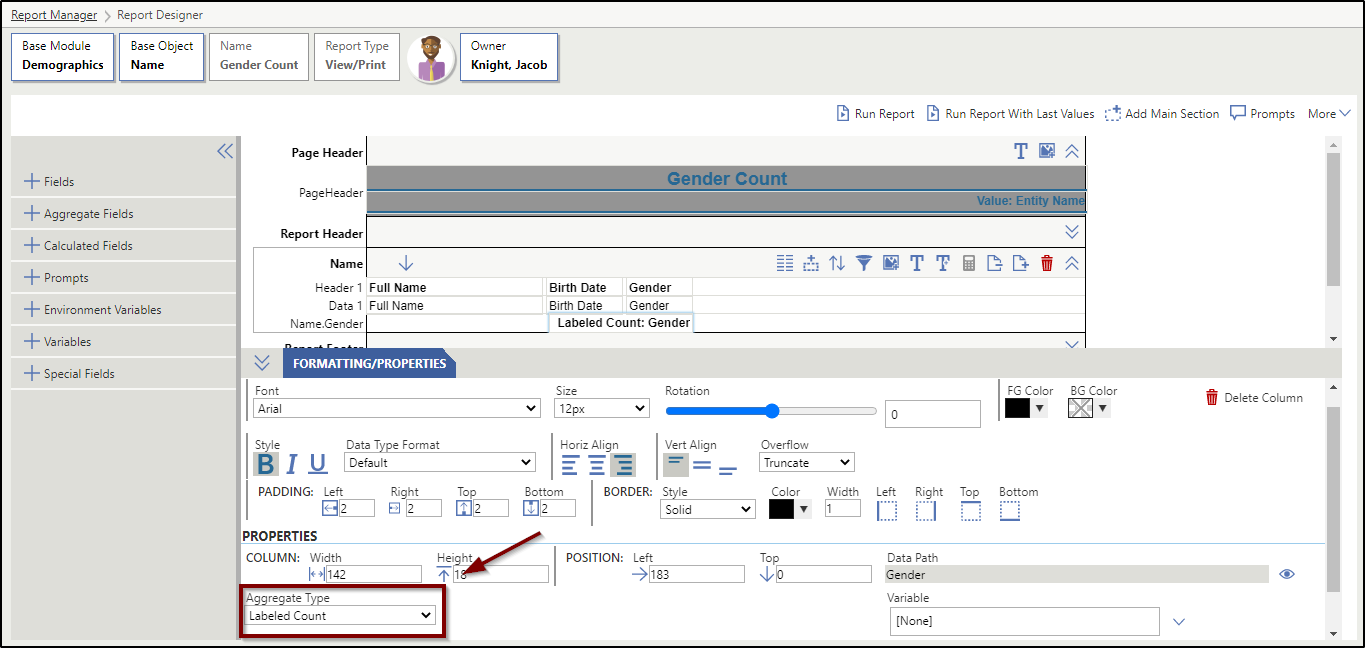
The following table is intended to help you understand the available Aggregate Type options.
| Aggregate Type Option | Description |
|---|---|
| Average | Averages together all values, except Blank or Null values, of a given numeric field. |
| Alphabetic Max | Prints the highest alphabetic value found for the field. Z is the highest possible value. |
| Alphabetic Min | Prints the lowest alphabetic value found for the field. A is the lowest possible value. |
| Date Time Max | Prints the highest date or time value found for the field. For example, if you had dates between January 1 through January 31, the Date Time Max would be January 31. |
| Date Time Median | Prints the midpoint date or time value found for this field. For example, if you have dates of January 1, 5, 12, 20, and 31, the Date Time Median would be January 12. |
| Date Time Min | Prints the lowest date or time value found for this field. For example, if you had dates between January 1 through January 31, the Date Time Min would be January 1. |
| Concatenate All | Combines all values into a single separated list that includes Blank and Null values. The separation can be indicated by a user defined character such as semicolon, comma, pipe, or a space. For example, when selecting a semicolon for the data set, (1, 1, 1, , 2, 3, , 3) is combined into 1; ;2;3. |
| Concatenate All Exclude Blanks | Combines all values into a single separated list that does not include Blank and Null values. The separation can be indicated by a user defined character such as semicolon, comma, pipe, or a space. For example, when selecting a semicolon for the data set, (1, 1, 1, , 2, 3, , 3) is combined into 1;1;1;2;3;3. |
| Concatenate Distinct | Combines all distinct values into a single separated list that includes Blank and Null values. The separation can be indicated by a user defined character such as semicolon, comma, pipe, or a space. For example, when selecting a semicolon for the data set, (1, 1, 1, , 2, 3, , 3) is combined into 1;2;3. |
| Concatenate Distinct Exclude Blanks | Combines all distinct values into a single separated list that does not include Blank and Null values. The separation can be indicated by a user defined character such as semicolon, comma, pipe, or a space. For example, when selecting a semicolon for the data set, (1, 1, 1, , 2, 3, , 3) is combined into 1;2;3. |
| Count | Counts the number of data lines for almost all types of fields, including Blank and Null values. For example, (1, 1, 1, , 2, 3, , 3) is counted as 8. |
| Distinct Count | Counts the number of distinct values, except Blank and Null values, for almost all types of fields. For example, (1, 1, 1, , 2, 3, , 3) is counted as 3. |
| Labeled Count | Prints a count field with the field name and last record value of the aggregate field added to the line. For example, if you have an aggregate line for totals by Building code and your organization has Building codes of 100 and 200, then you must add the Building Code field to the line so the labeled count would display as, "Count of Building (100):" on the report after the records for Building 100. Likewise, "Count of Building (200):" would display on the report after the records for Building 200. The value that will display after the colon indicates the number of records associated with this building on the report. |
| Last Non Blank Record Value | Prints the last value for the selected field that was not Blank or Null. |
| Last Record Value | Prints the last value for the selected field. |
| Median | Finds the median value of all values, except Blank and Null values, of a given numeric field. |
| Numeric Max | Finds the largest value of all values, except Blank and Null values, of a given numeric field. |
| Numeric Min | Finds the smallest value of all values, except Blank and Null values, of a given numeric field. |
| Sort Subtotals Labels | When in a sort totals line, prints the label of the field for the sort value. For example, if your report has data sorted by gender, and you add the gender field to the sort totals line for gender, you can use this option to show the appropriate gender label at the end of those records. |
| Standard Deviation | Finds the statistical standard deviation of all values, except Blank and Null values, of a given numeric field. |
| Sum | Sums together all values of a given numeric field. |
| Time Span | Returns values for the range of time indicated. |
| Variance | Finds the statistical variance of all values, except Blank and Null values, of a given numeric field. |
Field Properties for Non-View/Print Report Types
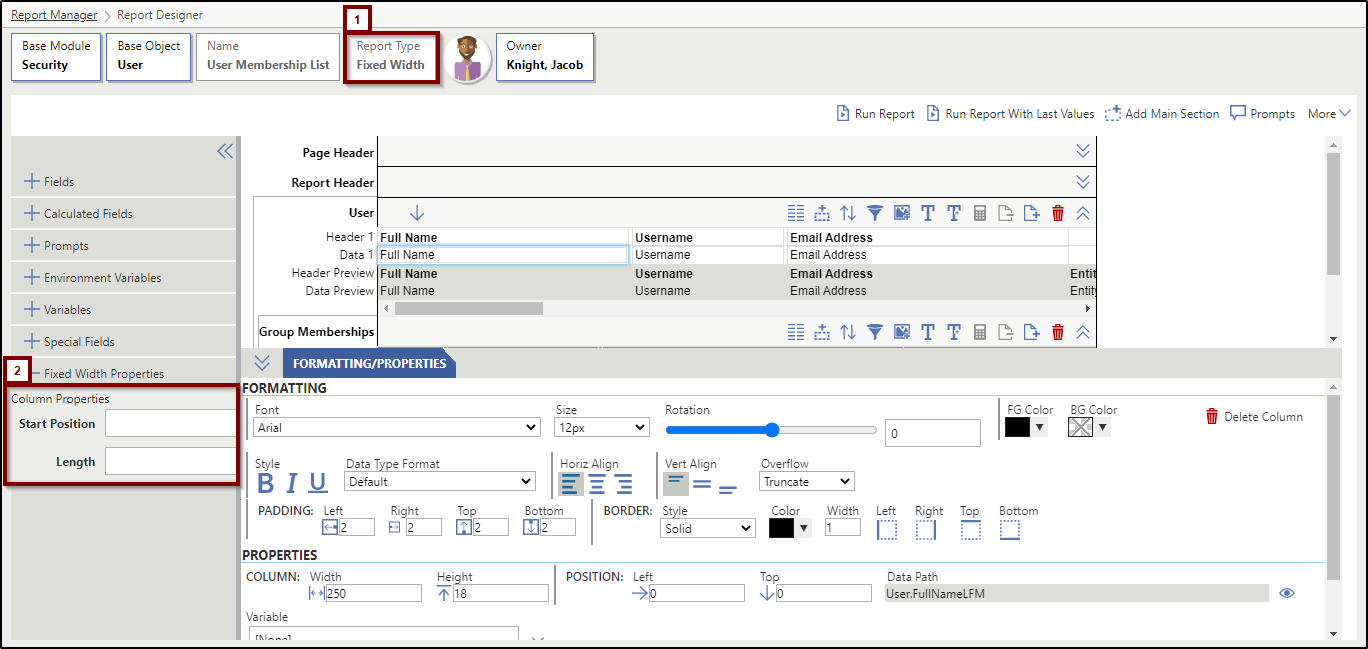
The image below displays the area of the Report Designer where the properties tab for Non-View/Print report types will display. For certain report types, you may not see the tab displayed to the left of the screen initially. This could also depend on if there is a field selected on the report.
| Property Option | Description | Additional Information |
|---|---|---|
| Column Property Name | Enables you to change the name of the field, similar to a text field. | This option only displays if the Report Type is set as XML. |
| Column Property Type | Defines how data is stored in the XML file. | This option only displays if the Report Type is set as XML. Element - Contains everything from the element's start tag to the element's end tag. An element can contain text, attributes, other elements, or a combination of all. Attribute - Contains values that are always quoted and designed to contain data related to a specific element. |
| Report Properties Include Root Node | Indicates if the top-level node of the XML should appear when the report is generated. This defaults to True and can only be unchecked if there is only one main section on the report. |
This option is only available if the Report Type is set as XML. |
| Report Properties Root Node Name | Sets the name for the root node in the XML. This defaults to the main section of the report that you are working in. |
This option is only available if the Report Type is set as XML. |
| Delimiter | Specifies which character divides distinct fields on the CSV/Delimited file. | This option only displays if the Report Type is set as CSV/Delimited. This setting applies to the entire file and is not specific to a row or field. |
| Text Qualifier | Wraps fields on the CSV/Delimited file with the qualifier character. | This option only displays if the Report Type is set as CSV/Delimited. This setting applies to the entire file and is not specific to a row or field. |
| Start Position | Determines the position on each line of the Fixed Width file where the field's data will begin to print. | This option only displays if the Report Type is set as Fixed Width. |
| Length | Determines the number of characters the field will print on the Fixed Width file. | This option only displays if the Report Type is set as Fixed Width. |
| Name | Enables you to change the name of the field, similar to a text field. | This option only displays if the Report Type is set as JSON. |