Transferring Grades in Teacher Access

Transferring grades in Teacher Access enables you to transfer assignment scores from one section to another, percentages from a prior closed grading period of one class to another, or weighted grades from one class to another.

Scroll past the video to access the step-by-step instructions.

Audio Transcript

In cases where students swap classes during a term, you can transfer grades from one class to another so that the student is not missing grades in their new class for part of the term. Let’s begin by navigating to the Gradesheet within the Gradebook module. Here, we’ll see our gradebook class list. Let’s select a class. Emily Green transferred into this class in the middle of the term. Because of this, we can see the Enter Transfer Grades button in the MT 1 column. Let’s select the option to begin entering transfer grades. Here we will see the Transfer Grades screen pop up. We can see the Grade Buckets to Transfer field, as well as a field that allows us to select the class that we would like to transfer grades from. Now we can click Next. On this screen, we will see transfer types and grade buckets to transfer. For the transfer type, we will leave it as Overall Percentage. We can use the Copy All button to pull over any matching information from the Class To Transfer From to the Class To Transfer To area. Now, let’s click Next. This screen will allow us to see what grades are transferring before we finish the process. Let’s select Run Process. Once we close out of the results window, we can see the grade percentage that transferred. Now that you know how to transfer grades, you will be able to make sure that students have accurate grades in the classes they transfer into.

In cases where students swap classes during a term, you can transfer grades from one class to another so that the student is not missing grades in their new class for part of the term. Let’s begin by navigating to the Gradesheet within the Gradebook module. Here, we’ll see our gradebook class list. Let’s select a class. Emily Green transferred into this class in the middle of the term. Because of this, we can see the Enter Transfer Grades button in the MT 1 column. Let’s select the option to begin entering transfer grades. Here we will see the Transfer Grades screen pop up. We can see the Grade Buckets to Transfer field, as well as a field that allows us to select the class that we would like to transfer grades from. Now we can click Next. On this screen, we will see transfer types and grade buckets to transfer. For the transfer type, we will leave it as Overall Percentage. We can use the Copy All button to pull over any matching information from the Class To Transfer From to the Class To Transfer To area. Now, let’s click Next. This screen will allow us to see what grades are transferring before we finish the process. Let’s select Run Process. Once we close out of the results window, we can see the grade percentage that transferred. Now that you know how to transfer grades, you will be able to make sure that students have accurate grades in the classes they transfer into.


  1. Select Menu > Teacher Access > Gradebook.
  2. Select Gradesheet under Features.

    If you have already opened a gradesheet in your current session, you return to the most recently opened gradesheet. To select a different class, click Class List near the top right of the screen.

  3. Verify you are in the correct school year by checking the information at the top left of the screen.
  4. Click the tile for the class that contains the student you wish to transfer grades for.

    You see the Gradesheet for the selected class.

  5. Click Enter Transfer Grades in the cell of the appropriate grading period.

    The image below displays the Enter Transfer Grades option in the T 1 grading period for Andrea Green. The Left and Right Arrows icon also launches the transfer grades workflow, and can be accessed under the T 2 and SE 1 grading periods, under Andrea's name, and within the Record Options menu by clicking the drop-down icon at the left of the screen. The icon also displays under Ashley Tyler's name and in the T1 grading period.
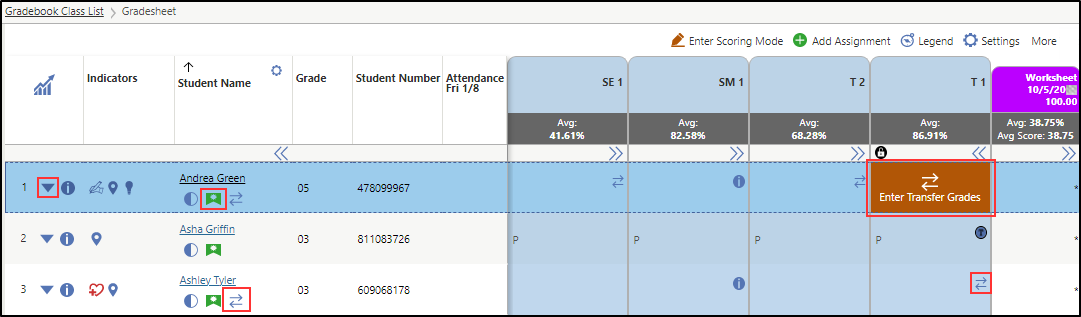
    The Enter Transfer Grades option displays with an orange background and the Left and Right Arrows icon if the student was not enrolled in the grading period and a grade is required for the grading period in order to calculate the student grade for another grading period, such as a semester. Alternatively, you can click the Left and Right Arrows icon in the cell of a grading period where grades can be transferred but may not be required. The icon without the orange background indicates the student is partially enrolled in the grading period, so transferring grades may not be required since the student will have a grade calculated by the system for that grading period. Continue to the next step.

    The Left and Right Arrows icon also displays under the student's name in the Student Name column, within the New Student indicator, or within the drop-down icon to the left of the student's name. If you click the New Student icon under the student's name, you must click Enter Transfer Grades from the New Student window. Clicking the Left and Right Arrows icon in any place will launch the transfer grades workflow. Skip to step 7.

    You see the Student Grade Information window.

  6. Under the Transfer Grade Recommended heading, click Enter Transfer Grades.

    You see the Transfer Grades screen.

  7. Complete the appropriate fields.

    Required fields are identified with an asterisk. You must complete required fields before you can save your work.

    1. Verify the Grade Buckets to Transfer or enter the correct grade buckets if necessary.
      This defaults based on the Grade Buckets where a transfer grade is required for the student but can be modified if necessary.
    2. Verify the Class to Transfer From or enter the correct class if necessary.

      This enables you to specify which class you wish to transfer grades from. For example, if a student was in Math section 1 but is transferring to Math section 2, you could enter Math section 2 in this field. This field defaults if the student was previously enrolled in a class that has the same Course code or Curriculum code, but can be left blank if necessary.

    3. Click Next near the top left of the screen.

      You see the Transfer Type field and the Class To Transfer To area. If you selected a Class to Transfer From on the previous screen, you also see the Class To Transfer From area.

    4. Note: The options and screens you see are dependent on the student's enrollment status in the course for grade buckets where the student needs assignment, subject or academic standard, or percentage scores in order to calculate other grades for the class. For example, if a Term 1 and Term 2 grade are required to calculate the Semester 1 grade, you may need to transfer a Term 1 grade where the student was not enrolled in the class, as well as a Term 2 grade where the student was partially enrolled in the class. In this situation, you will repeat sub-steps d - i to complete both the not enrolled and partially enrolled transfer processes.
      Under the Transfer Details heading for the grade bucket, select the appropriate radio button to indicate the Transfer Type.

      You can click the Information icon to the right of the Transfer Type field to view detailed information about each option.

      Selecting Overall Percentage indicates you wish to transfer a percentage from a grading period of one class to another. This enables you to enter a starting percentage for an in-progress grading period by setting the assignment scores the student missed, or transfer in a grade for a closed grading period that is needed to calculate a semester grade. The percentage you enter is applied to all assignments for the selected grading period.

      For example, students may need a Term 1 and Term 2 grade in order to calculate their Semester 1 grade. If a student transfers to a class during Term 2, they would not have a Term 1 grade for the class. This option could be used to transfer their Term 1 grade from the previous class the student was enrolled in so that a Semester 1 grade can be calculated.

      Selecting Category Percentages indicates you wish to transfer a percentage for each category that is used in the selected grading period for the class. If the student is partially enrolled in the grading period, these category percentages will be applied to each appropriate assignment. If the student is not enrolled in the grading period, the category percentages will be applied to assignments in the background and then used to calculate an overall percentage for the grading period.

      For example, you might choose to transfer category percentages if the class uses category weighting as the calculation method for the grading period. This allows you to enter a starting percentage for each category of assignments used in the class.

      Selecting Assignment Scores indicates you wish to transfer prior assignment scores from one section to another section in any grading period. This option is most often used when students are transferring between sections of a course and the assignments match up. However, you can choose this option and manually enter transfer assignment scores for unrelated classes.

      For example, if a student is transferring from first period Algebra I class to third period Algebra I class, you would use this option. This option typically only displays if the student was partially enrolled in the grading period. However, this option will also display if the student was not enrolled in the grading period if the box for Allow Scoring of Transfer Assignments on Gradesheet is checked in the Entity Group Configuration of the Gradebook module.

      Selecting Subject / Academic Standard Grades indicates you wish to transfer Subjective or Mastery grades from one class to another. This enables you to enter a subjective grade or indicate mastery for a subject or academic standard from one class to a subject or academic standard in another.

      For example, if a student is transferring from one English class to a more advanced English class, you could use this option to transfer their subjective grades and mastered standards to the new class. This option only displays if there are subjects or academic standards that are set to have a Calculation type of Subjective or Mastery.

      If you selected Overall Percentage, you see the details about the grade bucket and a field to enter the percent. Continue to the next sub-step.

      If you selected Category Percentages, you see the details about the categories for the grade bucket and a field to enter the percent for each category. Skip to sub-step g.

      If you selected Assignment Scores, you see the details about the assignments for the grade bucket and fields to enter score information. Skip to sub-step h.

      If you selected Subject / Academic Standard Grades and the class uses subjective grades, you see the details about the grade bucket and a field to enter the grade. If the class uses Mastery grades, you see the details about the grade bucket and a checkbox to indicate if the standard has been mastered. Skip to sub-step i.

    5. Click Copy All in the middle of the screen to copy the percent earned for each grading period from the Class To Transfer From to the Class To Transfer To.

      Alternatively, you can enter a percent for each grading period under the Student Grade Buckets heading in the Class To Transfer To area if there are no matching values to copy or if you would rather manually decide which percents apply to each grade bucket.

    6. Choose the appropriate option in the Percent Update Method column using the drop-down list.

      This option only displays if the following criteria are met:

      • The student left the class and came back.

      • The student was partially enrolled in the beginning of the bucket but left before it ended.

      • The student has a transaction that starts after the bucket end date.

      • The bucket is closed so that it won't recalculate.

      If you only wish to transfer a percentage for the bucket, but not assign that percentage to each assignment, you would select Overall Percent. Alternatively, if you wish to assign the percentage to the bucket as well as the assignments, you would select Calculate Percent.

      Skip to sub-step j.

    7. Click Copy All in the middle of the screen to copy the percent earned for each category for each grading period from the Class To Transfer From to the Class To Transfer To.
      Alternatively, you can enter a percent for each Category for each grading period under the Categories heading in the Class To Transfer To area if there are no matching values to copy or if you would rather manually decide which percents apply to each category.

      Skip to sub-step j.

    8. Click Copy All in the middle of the screen to copy assignment information from the Class To Transfer From to the Class To Transfer To.
    9. Click Copy All in the middle of the screen to copy the subject or academic standard grade or mastery for each subject or academic standard from the Class To Transfer From to the Class To Transfer To.

      Alternatively, if the class uses subjective grades, you can enter a grade for each subject or academic standard under the Subjective Subjects / Academic Standard Grades heading in the Class To Transfer To area if there are no matching values to copy or if you would rather manually decide which grades apply to each subject or academic standard.

      If the class uses mastery grades, you can indicate mastery for each subject or academic standard under the Mastery Subjects / Academic Standard Grades heading in the Class To Transfer To are if there are no matching values to copy or if you would rather manually which subject or academic standard to indicate mastery for.

    10. Click Next near the top left of the screen.

      If the student needs transfer grades for both grade buckets where they are not enrolled and where they are partially enrolled, you see fields where you can enter transfer information for the partially enrolled grade bucket. Repeat sub-steps d - i.

      If the student only needs transfer grades for a grade bucket where they are not enrolled, you see a summary of the information to be transferred.

    11. Uncheck the box or boxes for the information you do not wish to transfer.

      All boxes default to checked, but can be unchecked if necessary.

      You can uncheck the box at the top of the Select column to uncheck all boxes and then check the boxes for the records to transfer.

  8. Click Run Process near the top left of the screen.

    If you are transferring grades into a closed grade bucket that the student was partially enrolled in, you see a message indicating the grade bucket is closed and will not update from the transferred grades unless you create a closed grading period grade change request. Continue to the next step.

    If you are transferring grades into a closed grade bucket that the student was not enrolled in, or an open grade bucket, you see a message indicating the grades were transferred successfully, as well as the number of successful and failed records. Skip to step 11.

  9. Check the box for Create Closed Grading Period Grade Change Request(s) if appropriate.

    You may wish to leave this box unchecked if you do not want the closed grading period grade to be recalculated. For example, if a student transferred partially through the Mid-Term 1 bucket, but the transfer grades process was not completed before the Mid-Term 1 bucket closed, you may wish to run the transfer process to transfer assignment scores for Mid-Term 1 since they will affect the Term 1 grade, but you may not want the Mid-Term 1 grade to change because it is officially closed. In this case, you would leave the box unchecked.

  10. Click Run Process near the top left of the screen.

    You see the total number of successful and failed records.

  11. Click Close near the top left of the screen.

    You return to the Gradesheet for the selected class, which displays the newly transferred grades for the student.

Result(s)

You have successfully transferred grades in Teacher Access.