Creating Details Section on Report
After you have added a detail section, there are additional properties and formatting you can set for the sections and the lines contained within the sections.
Scroll past the video to access the step-by-step instructions.
Audio Transcript
Let's get started with adding a detail section to our report. To do this, we'll navigate to the Reporting module, locate the Report Manager feature, and identify our report we wish to update. We'll access the Design Report option for the report. A details section for a report is additional information that is attached to the subject of your report. In this case, for our students, they can have additional activities attached to their record, so we're going to add a detail section for student activities. To do this, we'll click the Add Detail Section button for our student section. In here, we'll need to scroll down to locate the one-to-many relationships where we can then find the Student Activities relationship. Once we select the detail section we'd like to create, we can go ahead and click Save. Notice how our detail section is inset under our main section. We can then add the additional information we want to display within that details section. Once all the information for our details section has been added to our report, we can save those changes. This has been adding a detail section to a report.
Let's get started with adding a detail section to our report. To do this, we'll navigate to the Reporting module, locate the Report Manager feature, and identify our report we wish to update. We'll access the Design Report option for the report. A details section for a report is additional information that is attached to the subject of your report. In this case, for our students, they can have additional activities attached to their record, so we're going to add a detail section for student activities. To do this, we'll click the Add Detail Section button for our student section. In here, we'll need to scroll down to locate the one-to-many relationships where we can then find the Student Activities relationship. Once we select the detail section we'd like to create, we can go ahead and click Save. Notice how our detail section is inset under our main section. We can then add the additional information we want to display within that details section. Once all the information for our details section has been added to our report, we can save those changes. This has been adding a detail section to a report.
-
Click Save near the bottom right of the window.
You return to the Report Designer screen.
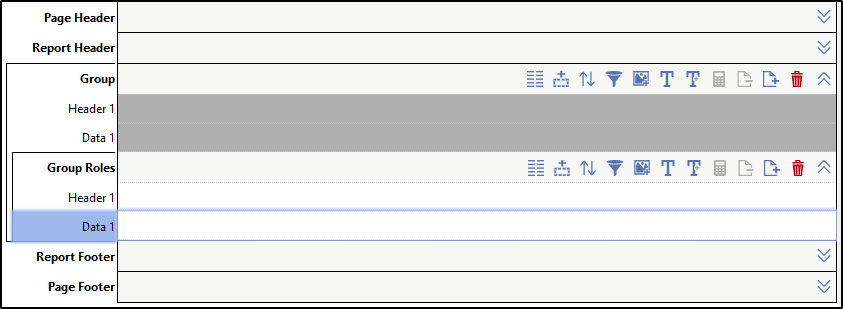
Result(s)
For more detailed information, please refer to the "Creating Details Section on Report" article in the Help Center.