Enrolling Student New To District - WA
Scroll past the video to access the step-by-step instructions.
You may see fields in the following media that do not apply to your state. Please reference the written documentation for guidance on fields applicable to your state.
Audio Transcript
Enrolling a new student to your district enables you to add the appropriate details about them in order to maintain accurate student records. This includes demographic information such as language, ethnicity, and more. Let's begin by heading to the Student Profile within the Student module. From here, we can select Add Student near the top right of the screen. Let's enter our student's first name and last name into the corresponding fields. If we needed to refine the search results more to verify if this student already exists in our system, we could continue filling out the remaining fields. For our purposes, we'll be filling these out later in the process, so we'll click Next. Under the Student Details heading, we'll fill out any additional information for this student. If this student only has one name, checking the Name is One Name box will display just the Name field, which can then be updated as needed. We'll leave it unchecked since this does not pertain to our student. We could enter a middle name, name suffix such as Jr. or Sr., or pronunciation information regarding how to pronounce her name. If Jamie has a separate legal name, we could check the associated box where we can then fill out a legal last name, legal first name, legal middle name, and legal name suffix as necessary. We could also check the box for Legal Name is One Name if this student's legal name is only one name. We can specify the legal name and the legal name suffix if needed. We'll uncheck these options for our example since they do not apply to our student. Moving on, we can identify Jamie's gender. Since Jamie is a female, we'll select that option from the drop-down list. We can enter Jamie's gender identity now if this is known. It's important to note that this field only displays if the box for Use Gender Identity is checked in the System Configuration of the Demographics module. The options available for selection pull from the Gender Identity codes that are set up in the Demographics module. Jamie's preferred pronouns are She/Her so let's select this option from the drop-down list. The options available for selection pull from the Pronoun codes that we have set up in the Demographics module. This field only displays if the box for Use Pronouns is checked in the System Configuration of the Demographics module. We could check the State Gender Is Non-Binary box if this is applicable to the student. Let's enter her birth date now. Jamie primarily speaks English, and her native language is also English, so let's specify that information now. We could enter a feeder school now if this is known. This field allows us to identify the school that she came from prior to attending our entity. We'll accept the Allow Student Access as checked since we want to enable the Student Access portal for this student. The Distribute Student Information For options can also be left as checked for our example. These boxes indicate whether student information can be included in a report and distributed to a requesting party. The options that display are based on the selections made on the Distribution Settings tab in the Entity Group Year Configuration of the Student module. Let's scroll down to view more fields. We can specify this student's federal race and ethnicity by choosing the appropriate option. If we've verified her race, we can note how it was verified and the date that we verified this information. Any state and federal information can be filled in now if necessary. For our example, we'll leave them as is and click Save & Add Entry Withdrawal. The Entity and School Year fields default appropriately and display information regarding what school she will be attending for this school year. We'll continue by indicating the date she will begin enrolling and attending classes at this school. We could utilize the Effective Start Date field if the Start Date we selected falls on a weekend, when school is not in session. However, since she is new to the school and will be starting school on Monday, we'll leave it blank. She will be enrolled at our school 100% of the time, so we'll accept the default for the Percent Enrolled field. The Grad Year/Grade field defaults based on the birth date we entered for this student but can be modified if needed. We could enter a Grade Level Subcategory if necessary. This field enables organizations to further break down grade levels. For this example, we'll leave it blank. The Graduation Requirement Year field defaults based on the grad year and birth date that was previously entered. This identifies this student's graduation year when they are first enrolled in the organization for graduation requirement purposes. We could modify this if needed. Since she is a new student to our entity, we'll select the Entry code of New. An entry comment can be entered if applicable. This could be the name of the organization the student transferred from, or any additional details we wish to record regarding the student. The School and Calendar fields default based on the entity we're enrolling this student in, so we'll leave these as they are. Let's indicate the Student Type. She will be a General Education student. For our example, the Default Entity box defaults as checked and cannot be updated. This box will only become editable if this student is enrolled in another entity and spends the majority of their time in that entity. If enabled within the Entity Configuration setting of the Fee Management module, we may see additional options under the Fee Management Details heading. We'll leave the Create Customer box checked so we can create customer records for this student. Let's scroll down. The remaining fields on this screen do not need to be filled out at this time, so we'll select Save & Continue. We want to enable Student Access for this student, so we'll leave the corresponding field checked. We can verify the student's user details which include their student username, email address, and email type information. If we wanted to update any of these fields, we could do so now. Since everything looks correct, we'll save to complete this process. After you have enrolled a new student, you can begin scheduling this student into classes and update her information as needed.
Enrolling a new student to your district enables you to add the appropriate details about them in order to maintain accurate student records. This includes demographic information such as language, ethnicity, and more. Let's begin by heading to the Student Profile within the Student module. From here, we can select Add Student near the top right of the screen. Let's enter our student's first name and last name into the corresponding fields. If we needed to refine the search results more to verify if this student already exists in our system, we could continue filling out the remaining fields. For our purposes, we'll be filling these out later in the process, so we'll click Next. Under the Student Details heading, we'll fill out any additional information for this student. If this student only has one name, checking the Name is One Name box will display just the Name field, which can then be updated as needed. We'll leave it unchecked since this does not pertain to our student. We could enter a middle name, name suffix such as Jr. or Sr., or pronunciation information regarding how to pronounce her name. If Jamie has a separate legal name, we could check the associated box where we can then fill out a legal last name, legal first name, legal middle name, and legal name suffix as necessary. We could also check the box for Legal Name is One Name if this student's legal name is only one name. We can specify the legal name and the legal name suffix if needed. We'll uncheck these options for our example since they do not apply to our student. Moving on, we can identify Jamie's gender. Since Jamie is a female, we'll select that option from the drop-down list. We can enter Jamie's gender identity now if this is known. It's important to note that this field only displays if the box for Use Gender Identity is checked in the System Configuration of the Demographics module. The options available for selection pull from the Gender Identity codes that are set up in the Demographics module. Jamie's preferred pronouns are She/Her so let's select this option from the drop-down list. The options available for selection pull from the Pronoun codes that we have set up in the Demographics module. This field only displays if the box for Use Pronouns is checked in the System Configuration of the Demographics module. We could check the State Gender Is Non-Binary box if this is applicable to the student. Let's enter her birth date now. Jamie primarily speaks English, and her native language is also English, so let's specify that information now. We could enter a feeder school now if this is known. This field allows us to identify the school that she came from prior to attending our entity. We'll accept the Allow Student Access as checked since we want to enable the Student Access portal for this student. The Distribute Student Information For options can also be left as checked for our example. These boxes indicate whether student information can be included in a report and distributed to a requesting party. The options that display are based on the selections made on the Distribution Settings tab in the Entity Group Year Configuration of the Student module. Let's scroll down to view more fields. We can specify this student's federal race and ethnicity by choosing the appropriate option. If we've verified her race, we can note how it was verified and the date that we verified this information. Any state and federal information can be filled in now if necessary. For our example, we'll leave them as is and click Save & Add Entry Withdrawal. The Entity and School Year fields default appropriately and display information regarding what school she will be attending for this school year. We'll continue by indicating the date she will begin enrolling and attending classes at this school. We could utilize the Effective Start Date field if the Start Date we selected falls on a weekend, when school is not in session. However, since she is new to the school and will be starting school on Monday, we'll leave it blank. She will be enrolled at our school 100% of the time, so we'll accept the default for the Percent Enrolled field. The Grad Year/Grade field defaults based on the birth date we entered for this student but can be modified if needed. We could enter a Grade Level Subcategory if necessary. This field enables organizations to further break down grade levels. For this example, we'll leave it blank. The Graduation Requirement Year field defaults based on the grad year and birth date that was previously entered. This identifies this student's graduation year when they are first enrolled in the organization for graduation requirement purposes. We could modify this if needed. Since she is a new student to our entity, we'll select the Entry code of New. An entry comment can be entered if applicable. This could be the name of the organization the student transferred from, or any additional details we wish to record regarding the student. The School and Calendar fields default based on the entity we're enrolling this student in, so we'll leave these as they are. Let's indicate the Student Type. She will be a General Education student. For our example, the Default Entity box defaults as checked and cannot be updated. This box will only become editable if this student is enrolled in another entity and spends the majority of their time in that entity. If enabled within the Entity Configuration setting of the Fee Management module, we may see additional options under the Fee Management Details heading. We'll leave the Create Customer box checked so we can create customer records for this student. Let's scroll down. The remaining fields on this screen do not need to be filled out at this time, so we'll select Save & Continue. We want to enable Student Access for this student, so we'll leave the corresponding field checked. We can verify the student's user details which include their student username, email address, and email type information. If we wanted to update any of these fields, we could do so now. Since everything looks correct, we'll save to complete this process. After you have enrolled a new student, you can begin scheduling this student into classes and update her information as needed.
- Click Add Student near the top right of the screen.
You see the Add Student screen.
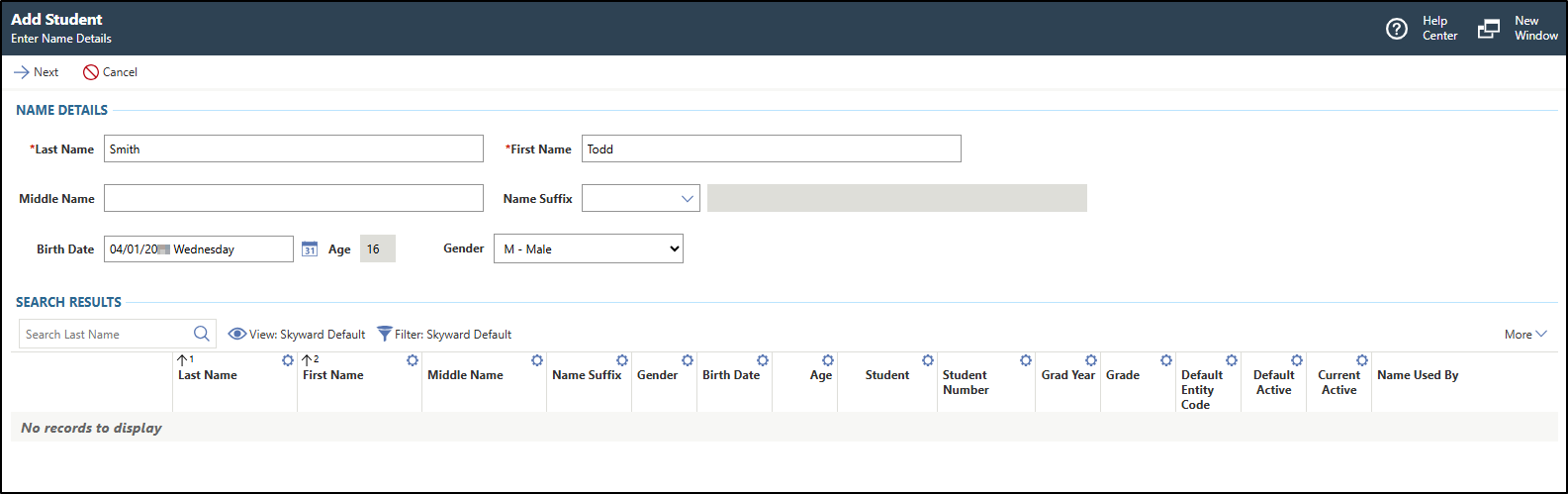
- Complete the appropriate fields.
You must complete required fields before you can save your work. Fields marked as Optional in the documentation are not required to complete.
- Click Next near the top left of the screen.
You see fields that enable you to enter student information.
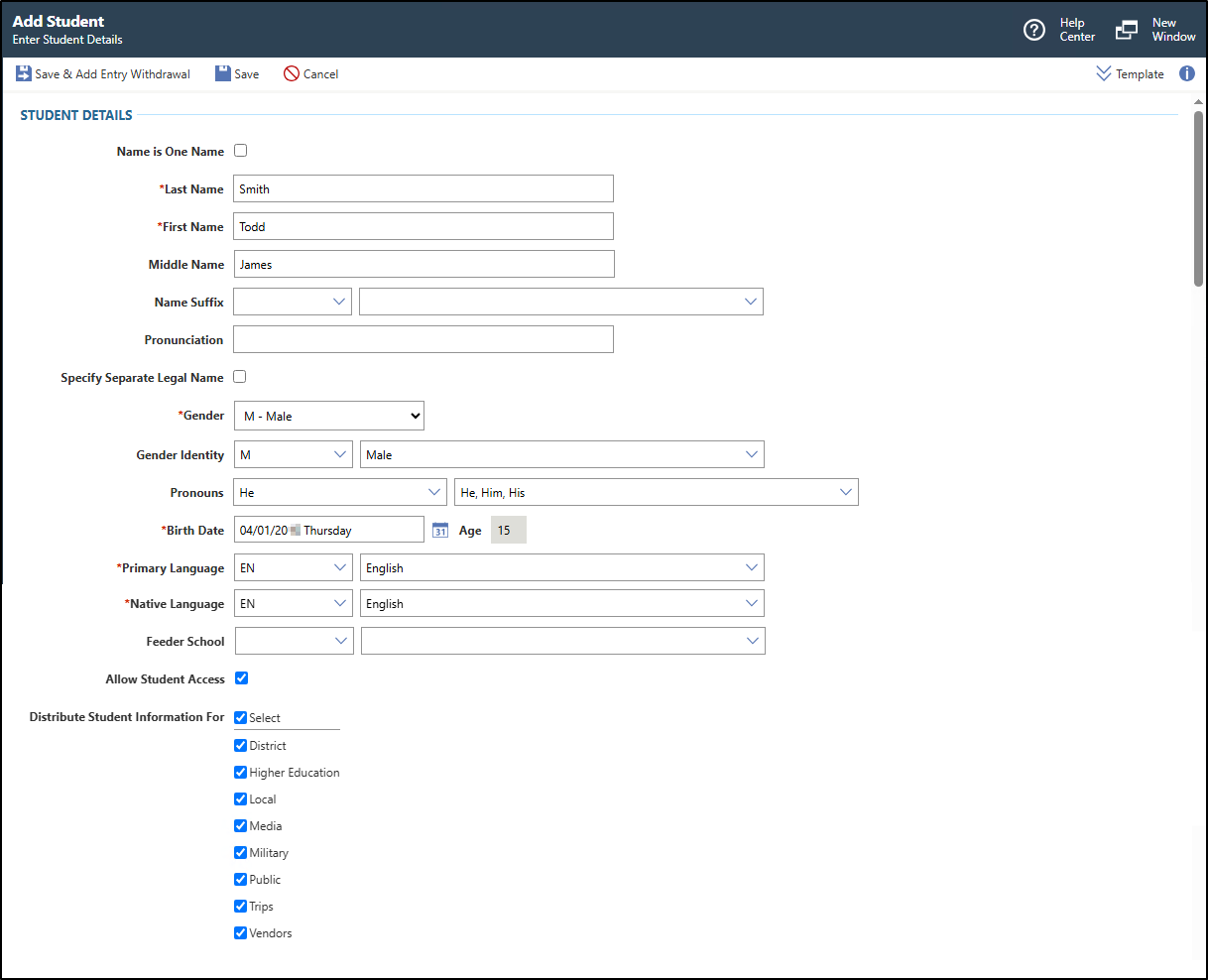
- Click Save & Add Entry Withdrawal near the top left of the screen to save your work.
If you are working at the district level and do not wish to add an entry withdrawal at this time, you would select the Save option.
You see the Add Entry Withdrawal screen, which enables you to enter the student's enrollment information. Typically, you would not complete the fields for withdrawal information unless you are creating a historical record.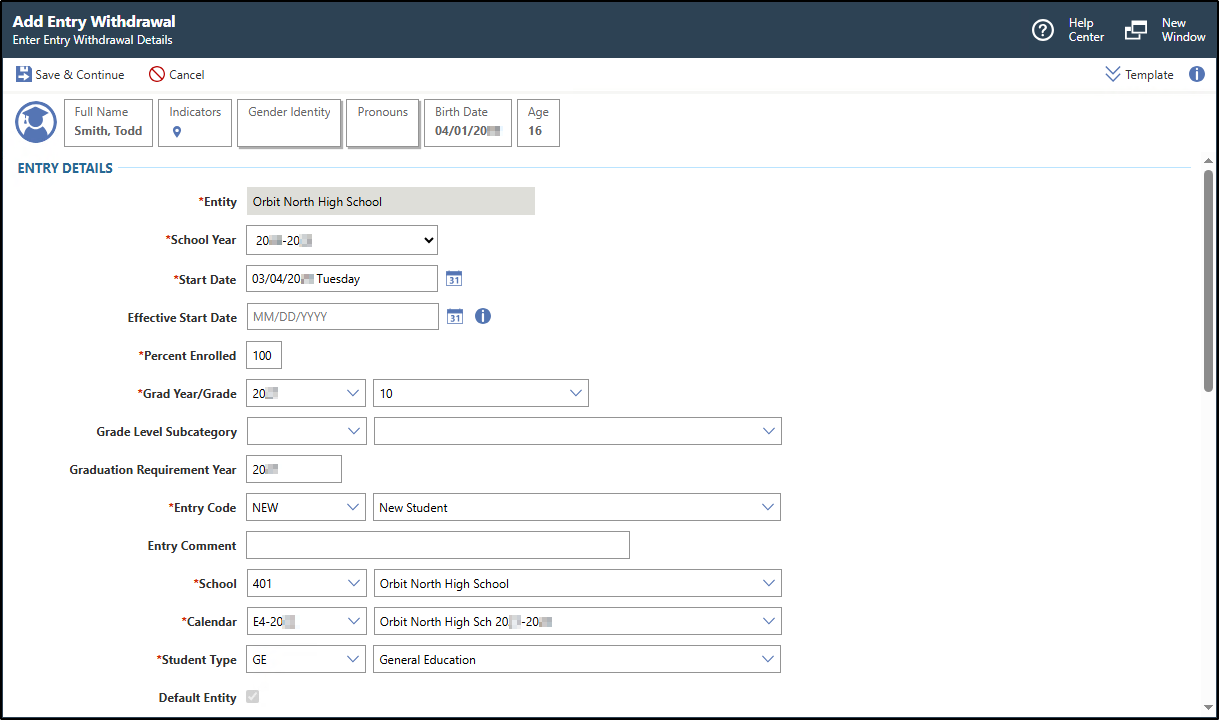
- Click Next near the top left of the screen.
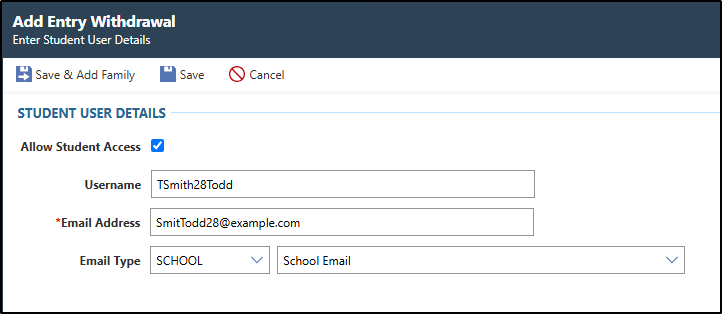
- Click Save & Continue near the top left of the screen.
You should only click Save if you do not wish to enter user information. This option only displays if the Username Generation Type is Optional in the System Configuration of the Student module. If you click Save, you return to the Student Profile. No further steps are required.
You see fields for entering user information.