Processing Mass Add Attendance by Activity
Scroll past the video to access the step-by-step instructions.
Before you begin
-
The attendance types and attendance reasons you wish to use must exist.
-
Students must be scheduled into classes.
-
Students must be scheduled into activities.
-
Verify you are in the correct Entity and school year by checking the information at the top left of the screen.
Audio Transcript
In case you ever need to enter the same attendance record for multiple students at once for an activity, you can use the Attendance Entry by Class/Activity/Range feature. To begin this process, we will navigate to the Attendance Entry by Class/Activity/Range feature located within the Attendance module. For this example, we will add attendance records for the high school Chess Club’s competition. First, we will change the selection method to By Activity for Grade Levels Selected. For the activity, we will select Chess. The date and Grade Levels fields default, which we do not need to change for this example. Since this activity takes place from period 5 to period 8, we do not need to check the All Day box, and will instead select those periods as start and end period respectively. Since this competition is held by the high school, we will select School Function as the Attendance Type. For this example, we do not need to enter any more details, but we could choose to if we wanted to further define this attendance entry. Let’s select the Next option to proceed to the next screen, where we will see all the students whose attendance records will be updated. If we proceed to the next screen, we will see all the attendance records that will be added. Since we do not need to update any of these records, we will select Run Process to generate these records. Now that you know how to process attendance records en masse by activity, you can easily record attendance for students at an activity.
In case you ever need to enter the same attendance record for multiple students at once for an activity, you can use the Attendance Entry by Class/Activity/Range feature. To begin this process, we will navigate to the Attendance Entry by Class/Activity/Range feature located within the Attendance module. For this example, we will add attendance records for the high school Chess Club’s competition. First, we will change the selection method to By Activity for Grade Levels Selected. For the activity, we will select Chess. The date and Grade Levels fields default, which we do not need to change for this example. Since this activity takes place from period 5 to period 8, we do not need to check the All Day box, and will instead select those periods as start and end period respectively. Since this competition is held by the high school, we will select School Function as the Attendance Type. For this example, we do not need to enter any more details, but we could choose to if we wanted to further define this attendance entry. Let’s select the Next option to proceed to the next screen, where we will see all the students whose attendance records will be updated. If we proceed to the next screen, we will see all the attendance records that will be added. Since we do not need to update any of these records, we will select Run Process to generate these records. Now that you know how to process attendance records en masse by activity, you can easily record attendance for students at an activity.
-
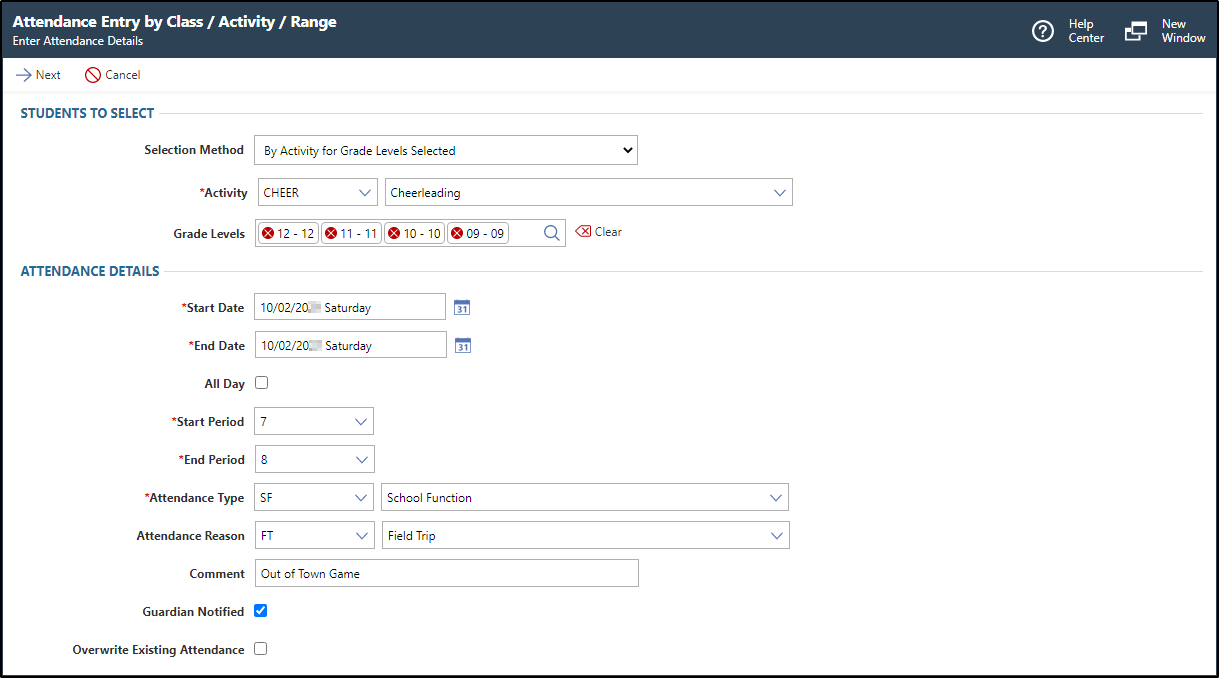
Complete the appropriate fields.
Step Information
Required fields are identified with an asterisk. You must complete required fields before you can save your work.
-
Optional: Verify the box for Overwrite Existing Attendance is checked or unchecked.
Step Information
When checked, any attendance records for the selected students and dates are changed. For example, if you previously entered an absence record for the biology class to be gone on an all-day field trip, but now the football team will be missing periods seven and eight to travel to an away game, you would check the box to overwrite existing attendance to indicate that the football players in the class will actually be absent for the sporting event.
When unchecked, any existing attendance records for the selected dates are not modified. For example, if a student athlete was previously marked as absent for an illness, and you are creating a record for the swimming team to be absent for period eight, checking this box will mistakenly mark this student as absent due to a sporting event, even if the student was actually home sick.
Expected ResultIn the image below, the class attendance record details display a cheer trip for the last two periods of the day.
-
Optional: Verify the box for Overwrite Existing Attendance is checked or unchecked.
Result(s)
You have successfully recorded attendance for multiple students by activity.