Adding Absence Requests in Family Access
You can add absence requests for your child to indicate a day or range of days your student will not be in school. This is helpful so you can add absence requests for your child via Family Access instead of being required to call the school to enter an absence request on your behalf. For example, if your child will be out sick for the day, or if your child will be gone due to a family vacation, you can enter an absence request to indicate these details.
Scroll past the video to access the step-by-step instructions.
Before you begin
-
Absence requests must be enabled administratively.
Audio Transcript
Entering absence requests through Family Access enables you to alert your child's school of an absence without waiting for the office to answer a call. This can be done for a specific day in case your child is sick or for a range of days such as if they'll be gone for a family vacation. Within Family Access, we'll select the Attendance tile. Let's verify that we're on the Absence Requests tab. We'll add an absence request now. The Start Date and End Date fields can be used to identify the date or dates that this student will be absent. Both fields default to today's date but can be modified if needed. Since Henry has a doctor's appointment today, we'll leave them as they are. The All Day box defaults as checked but can be unchecked if this student will only be absent for a certain period of time for the day. If they'll be gone for the entire day, we can leave this box checked. Let's select Doctor/Dentist Visit as the Attendance Reason to define why Henry will be absent. It's important to note that this field only displays if Attendance Reason codes have been administratively selected. The options available for selection are also based on administrative configuration. A comment can be entered into the Guardian Comment box to provide further information about this absence. For this example, we'll note that Henry has a doctor's appointment. If we'd like to add an attachment relating to this absence request, we could do so now. Since we won't be adding any attachments, we'll leave it as is. The Copy Absence Request to checkboxes allow us to copy this absence request to any of Henry's siblings if they'll also be absent. For example, if we'll be going on a family vacation and would like to copy this attendance to all our children, we could check the box next to each student as needed. It's important to note that this field only displays if we have more than one child and absence requests are configured administratively for each entity each child is enrolled in. Since only Henry will be absent, we'll leave them unchecked. Once everything looks correct, we can save this request. On this screen, we can see the absence request we just submitted display. Successfully entering absence requests through Family Access can alert the office of when your children will not be in school without you needing to call.
Entering absence requests through Family Access enables you to alert your child's school of an absence without waiting for the office to answer a call. This can be done for a specific day in case your child is sick or for a range of days such as if they'll be gone for a family vacation. Within Family Access, we'll select the Attendance tile. Let's verify that we're on the Absence Requests tab. We'll add an absence request now. The Start Date and End Date fields can be used to identify the date or dates that this student will be absent. Both fields default to today's date but can be modified if needed. Since Henry has a doctor's appointment today, we'll leave them as they are. The All Day box defaults as checked but can be unchecked if this student will only be absent for a certain period of time for the day. If they'll be gone for the entire day, we can leave this box checked. Let's select Doctor/Dentist Visit as the Attendance Reason to define why Henry will be absent. It's important to note that this field only displays if Attendance Reason codes have been administratively selected. The options available for selection are also based on administrative configuration. A comment can be entered into the Guardian Comment box to provide further information about this absence. For this example, we'll note that Henry has a doctor's appointment. If we'd like to add an attachment relating to this absence request, we could do so now. Since we won't be adding any attachments, we'll leave it as is. The Copy Absence Request to checkboxes allow us to copy this absence request to any of Henry's siblings if they'll also be absent. For example, if we'll be going on a family vacation and would like to copy this attendance to all our children, we could check the box next to each student as needed. It's important to note that this field only displays if we have more than one child and absence requests are configured administratively for each entity each child is enrolled in. Since only Henry will be absent, we'll leave them unchecked. Once everything looks correct, we can save this request. On this screen, we can see the absence request we just submitted display. Successfully entering absence requests through Family Access can alert the office of when your children will not be in school without you needing to call.
- Under the Year to Date Absence Requests heading, click Add Absence Request near the right of the screen.Expected Result
You see the Add Absence Request screen.
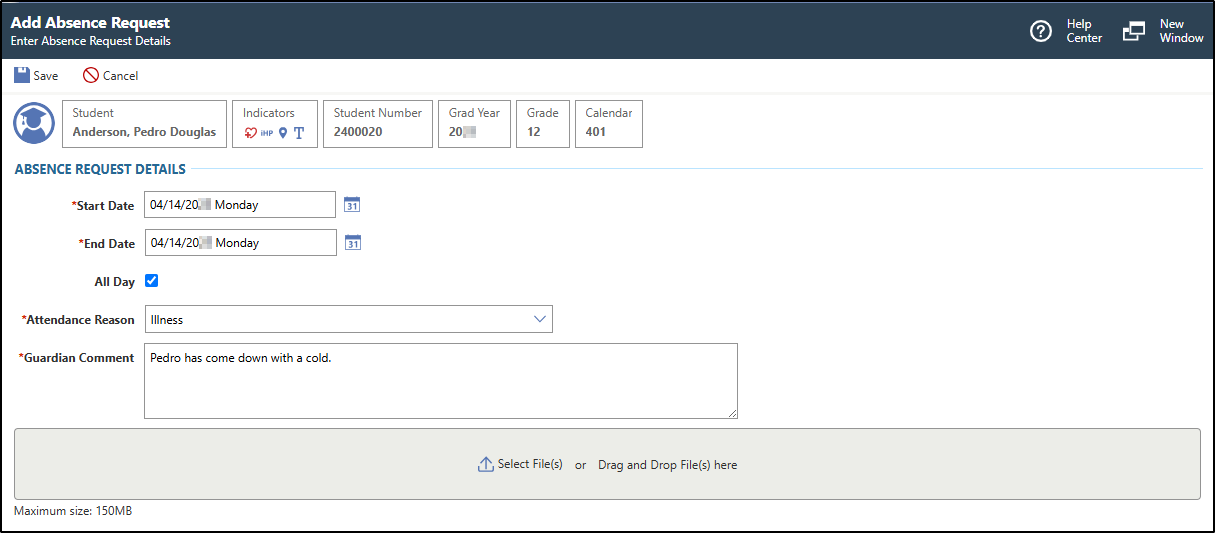
The image below displays an example absence request record for a student absence due to illness.
Result(s)
You have successfully added an absence request to your child in Family Access.