Entering Class Subject/Academic Standard Report Card Comments
Listed below are the sections for entering class subject academic standard report card comments.
-
Entering Comments for Grading Periods
-
Entering Comments for Subjects
-
Entering Comments for Academic Standards
Scroll past the video to access the step-by-step instructions.
Audio Transcript
Entering class subject and academic standard report card comments enables you to add comments to your students’ report cards individually or en masse. Depending on how your school office has configured report card comments, you may be able to enter comments using a pre-determined comment set or enter in free-form comments. For this video we’ll be going through how to enter subject and academic standard report card comments. Within the Teacher Access, we’ll navigate to the Gradesheet feature in the Gradebook module. We’ll select the class tile we want to add report card comments to. To add subject comments, we’ll click on the subject header. For our example, we’ll select the Math header. Within the Subject Options drop-down menu, we’ll click on the Add / Edit Comments for Subject option. Here, we have the option to add the same comment to all our students by entering a comment within the “Default Blank Comments to” field or enter individual comments by utilizing the Add Free Form Comment options next to each student. Since we want to enter the same comment for all our students, we’ll enter our comment within the “Default Blank Comments to” field. Let’s click the green checkmark to apply this comment to all our students. We’ll notice that this comment now displays next to each student. Let’s click Save & Back to return to the gradesheet. Next, we’ll add academic standard comments. Similarly, we’ll click on the academic standard heading that we want to add comments to. For our example, this will be our Mathematical Process Standards heading. Within the Academic Standard Options drop-down menu, we’ll select the Add / Edit Comments for Academic Standard option. If we have additional academic standards that we’d like to enter comments for, we could search for them within the Academic Standards field. For our video, we also want to add comments for the Recognizes numerals academic standard. We’ll notice that this academic standard now populates on the screen. Let’s add a comment for the Mathematical Process Standards and apply it to all our students. Again, we’ll enter our desired comment into the “Default Blank Comments to” field and then click the green checkmark. For the Recognizes numerals academic standard, we want to enter different comments for each of our students, so we’ll utilize the Add Free Form Comment option next to each of our students. Within the Free Form Comment drop-down, we’ll begin entering our comment for this student. Let’s click Done to apply this comment to this student. We’ll repeat this process for our remaining students. Once we’ve entered in all our desired comments, we’ll click Save & Back. Back on the Gradesheet, we’ll notice that we now have comment indicators for the subject and academic standards we just added. We can view these comments if we want, by clicking on the desired comment icons under the subject or academic standards headers. Now that you know how to enter class subject and academic standard report card comments, you can ensure that you’ll be able to add comments individually or en masse, depending on how your students are doing in class.
Entering class subject and academic standard report card comments enables you to add comments to your students’ report cards individually or en masse. Depending on how your school office has configured report card comments, you may be able to enter comments using a pre-determined comment set or enter in free-form comments. For this video we’ll be going through how to enter subject and academic standard report card comments. Within the Teacher Access, we’ll navigate to the Gradesheet feature in the Gradebook module. We’ll select the class tile we want to add report card comments to. To add subject comments, we’ll click on the subject header. For our example, we’ll select the Math header. Within the Subject Options drop-down menu, we’ll click on the Add / Edit Comments for Subject option. Here, we have the option to add the same comment to all our students by entering a comment within the “Default Blank Comments to” field or enter individual comments by utilizing the Add Free Form Comment options next to each student. Since we want to enter the same comment for all our students, we’ll enter our comment within the “Default Blank Comments to” field. Let’s click the green checkmark to apply this comment to all our students. We’ll notice that this comment now displays next to each student. Let’s click Save & Back to return to the gradesheet. Next, we’ll add academic standard comments. Similarly, we’ll click on the academic standard heading that we want to add comments to. For our example, this will be our Mathematical Process Standards heading. Within the Academic Standard Options drop-down menu, we’ll select the Add / Edit Comments for Academic Standard option. If we have additional academic standards that we’d like to enter comments for, we could search for them within the Academic Standards field. For our video, we also want to add comments for the Recognizes numerals academic standard. We’ll notice that this academic standard now populates on the screen. Let’s add a comment for the Mathematical Process Standards and apply it to all our students. Again, we’ll enter our desired comment into the “Default Blank Comments to” field and then click the green checkmark. For the Recognizes numerals academic standard, we want to enter different comments for each of our students, so we’ll utilize the Add Free Form Comment option next to each of our students. Within the Free Form Comment drop-down, we’ll begin entering our comment for this student. Let’s click Done to apply this comment to this student. We’ll repeat this process for our remaining students. Once we’ve entered in all our desired comments, we’ll click Save & Back. Back on the Gradesheet, we’ll notice that we now have comment indicators for the subject and academic standards we just added. We can view these comments if we want, by clicking on the desired comment icons under the subject or academic standards headers. Now that you know how to enter class subject and academic standard report card comments, you can ensure that you’ll be able to add comments individually or en masse, depending on how your students are doing in class.
-
To enter comments for grading periods, complete the
following sub-steps.
You can enter comments for grading periods using Comment Sets created by your District, or you can enter freeform comments for Subjects or Academic Standards that have a hierarchy depth level of two or greater. This is helpful if you want to track student progress within a Grade Bucket, subject, or academic standard but beyond the grade the student is receiving. For example, if a student is earning a B and you want to indicate that compared to the last Grading Period the student made significant improvements, you could enter a comment about their improvements. Additionally, you can enter comments for a specific subject or academic standard individually or en masse. For example, if you are entering freeform comments, you could indicate the student is Exceeding Expectations.
Before you begin, the maximum number of characters for freeform comments must be configured for your entity in the Entity Group Configuration of the Grading module. Additionally, comment sets must exist for your district.
-
Under the Student Sections heading,
enter a comment in the "Default Blank Comments to" field and click the
Checkmark icon to
the right of the field.
For example, if you are entering a comment for the math subject, you could enter Exceeding Expectations.
The freeform comment you enter in this field applies to all students.
Alternatively, you can click Add Free Form Comment to the right of a student's name to add an individual comment. If you choose to enter an individual comment, enter the freeform comment in the field that displays in the Free Form Comment drop-down menu and click Done near the bottom right of the window to return to the Student Comment List.
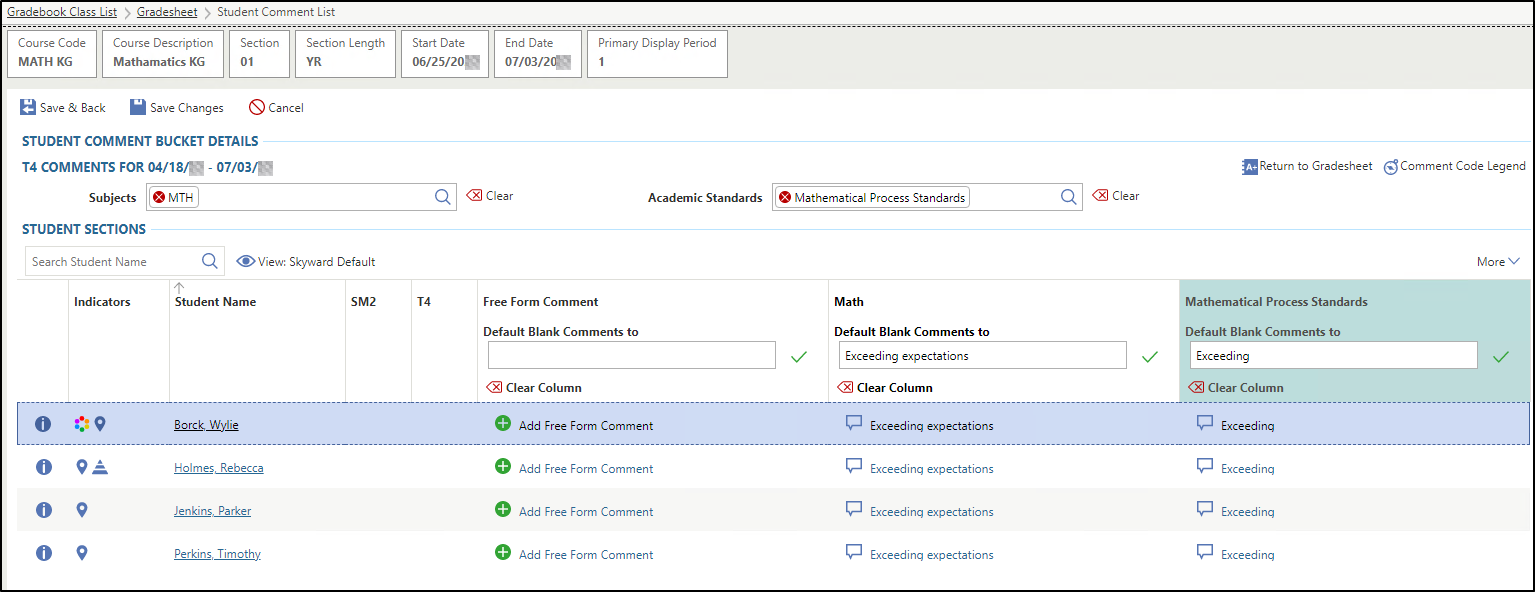
The freeform comment is applied to each student. If the box for Display Student Comment Indicator is checked on the Gradesheet Display sub-tab of the Gradesheet Settings screen, a comment indicator replaces the Add Free Form Comment option.
Option Description Save & Back Saves your changes and you return to the Gradesheet. If the box for Display Student Comment Indicator is checked on the Gradesheet Display sub-tab of the Gradesheet Settings screen, a comment indicator displays in each grading period row you added a comment for. Save Changes Saves your changes and you remain on the Student Comment List. You have successfully entered comments for grading periods.
-
Under the Student Sections heading,
enter a comment in the "Default Blank Comments to" field and click the
Checkmark icon to
the right of the field.
-
To enter comments for subjects, complete the following
sub-steps.
You can enter comments for Subjects using Comment Sets created by your District, or you can enter freeform comments. This is helpful if you want to track student progress within a subject but beyond the grade the student is receiving. For example, if a student had poor math scores and you want to indicate that compared to the last scores the student made significant improvements, you could enter a comment about their improvements. Additionally, you can enter comments for a subjects individually or en masse. For example, if you are entering freeform comments, you could indicate the student is Exceeding Math Expectations.
Before you begin, the box for Subjects must be checked for the Allow Comments for field for your entity in the Entity Group Configuration of the Gradebook module. Additionally, the maximum number of characters for freeform comments must be configured for your entity in the Entity Group Configuration of the Grading module, and the comment sets must exist for your district.
-
Under the Student Sections heading,
enter a comment in the "Default Blank Comments to" field and click the
Checkmark icon to
the right of the field.
For example, you could enter Exceeding Math Expectations.
The freeform comment you enter in this field applies to all students.
Alternatively, you can click Add Free Form Comment to the right of a student's name to add an individual comment. If you choose to enter an individual comment, enter the freeform comment in the field that displays in the Free Form Comment drop-down menu and click Done near the bottom right of the window to return to the Student Comment List.
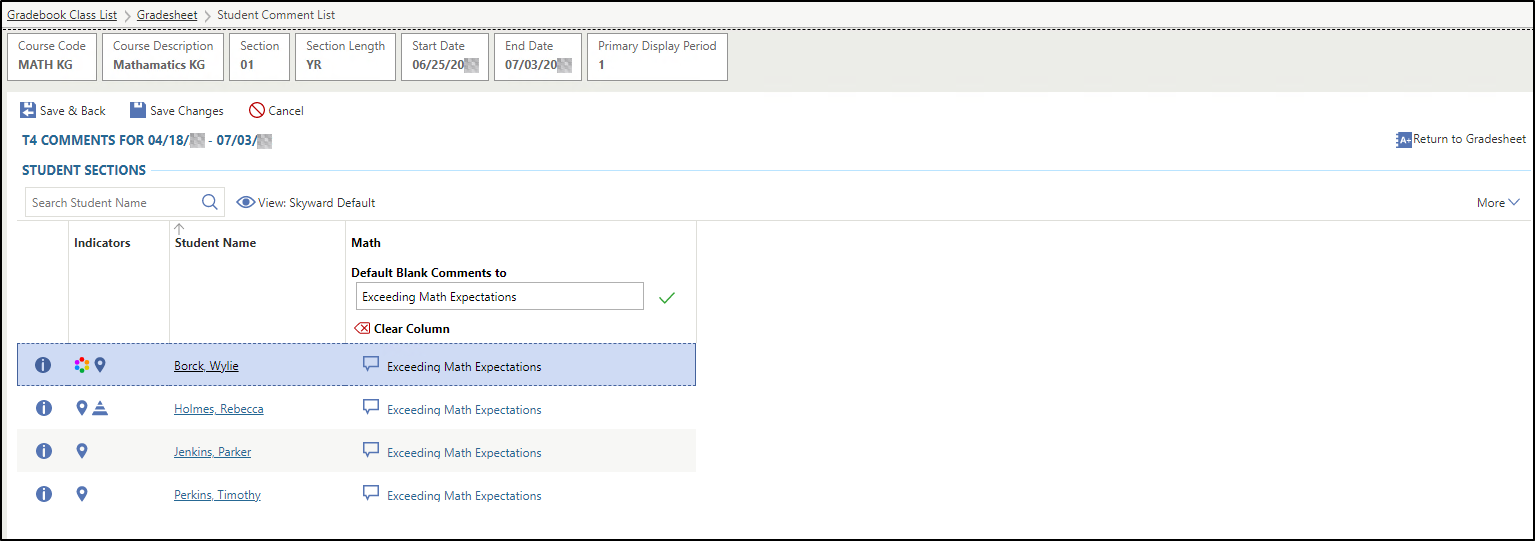
The freeform comment is applied to each student. If the box for Display Student Comment Indicator is checked on the Gradesheet Display sub-tab of the Gradesheet Settings screen, a comment indicator replaces the Add Free Form Comment option.
Option Description Save & Back Saves your changes and you return to the Gradesheet. If the box for Display Student Comment Indicator is checked on the Gradesheet Display sub-tab of the Gradesheet Settings screen, a comment indicator displays in each subject row you added a comment for. Save Changes Saves your changes and you remain on the Student Comment List. You have successfully entered comments for subjects.
-
Under the Student Sections heading,
enter a comment in the "Default Blank Comments to" field and click the
Checkmark icon to
the right of the field.
-
To enter comments for academic standards, complete the
following sub-steps.
You can enter comments for Academic Standards using Comment Sets created by your District or you can enter freeform comments. This is helpful if you want to track student progress within an academic standard but beyond the grade the student is receiving. For example, if a student was struggling reciting numbers 0 - 100, and you want to indicate that compared to the last academic standard assessment the student made significant improvements, you could enter a comment about their improvements. Additionally, you can enter comments for a specific academic standard individually or en masse. For example, if you are entering freeform comments, you could indicate "Surpasses Reciting Numbers 0 - 100".
Before you begin, the box for Academic Standards must be checked for the Allow Comments for option for your entity in the Entity Group Configuration of the Gradebook module. Additionally, the maximum number of characters for freeform comments must be configured for your entity in the Entity Group Configuration of the Grading module, and the comment sets must exist for your district.
-
Under the Student Sections heading,
enter a comment in the "Default Blank Comments to" field and click the
Checkmark icon to
the right of the field.
For example, you could enter "Surpasses Reciting Numbers 0 - 100".
The freeform comment you enter in this field applies to all students.
Alternatively, you can click Add Free Form Comment to the right of a student's name to add an individual comment. If you choose to enter an individual comment, enter the freeform comment in the field that displays in the Free Form Comment drop-down menu and click Done near the bottom right of the window to return to the Student Comment List.
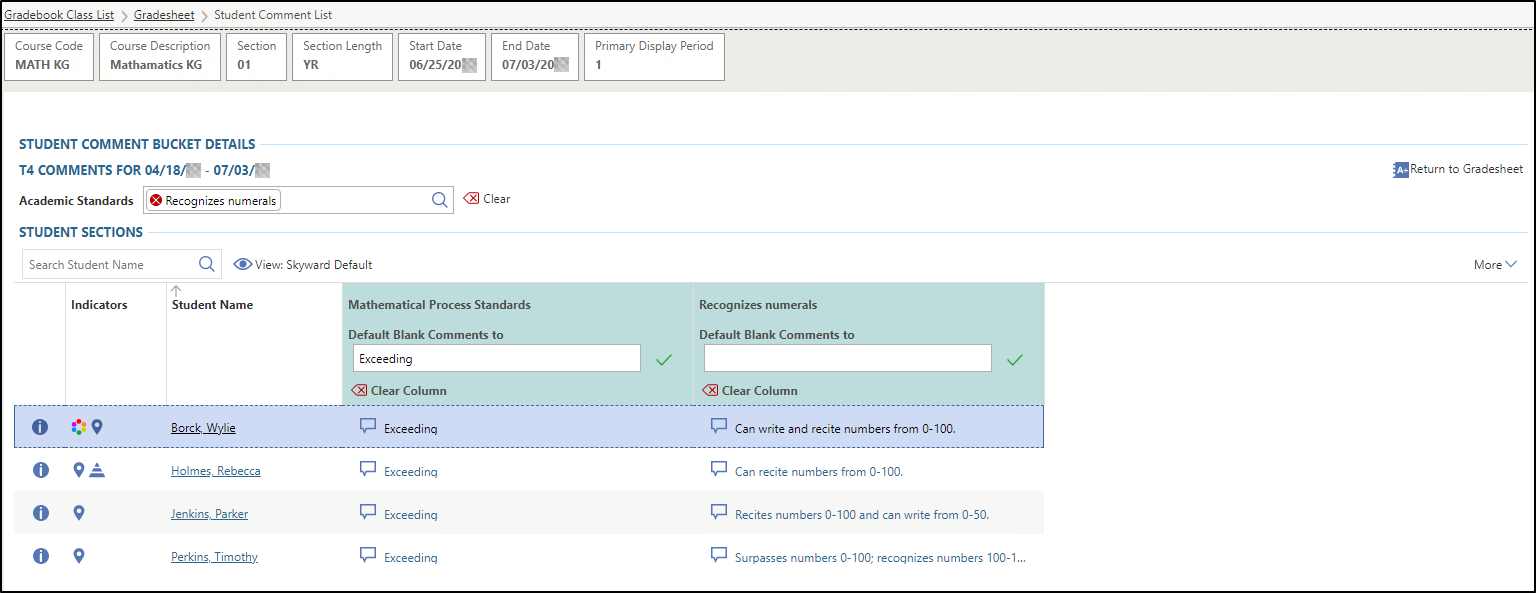
The freeform comment is applied to each student. If the box for Display Student Comment Indicator is checked on the Gradesheet Display sub-tab of the Gradesheet Settings screen, a comment indicator replaces the Add Free Form Comment option.
Option Description Save & Back Saves your changes and you return to the Gradesheet. If the box for Display Student Comment Indicator is checked on the Gradesheet Display sub-tab of the Gradesheet Settings screen, a comment indicator displays in each academic standard row you added a comment for. Save Changes Saves your changes and you remain on the Student Comment List. You have successfully entered comments for academic standards.
-
Under the Student Sections heading,
enter a comment in the "Default Blank Comments to" field and click the
Checkmark icon to
the right of the field.
Result(s)
You have successfully entered report card comments for grading periods, subjects, and academic standards.