Creating discipline referrals in Teacher Access enables teachers to enter disciplinary information for a student. For example, a teacher could enter a Discipline Referral
for an infraction, such as fighting. Similarly, a teacher could enter a warning for a minor infraction, such as cell phone use in class. Once the referral or warning has been entered by a teacher, a Discipline Officer
for the student. Actions cannot be added to referrals or warnings. The referral or warning must be updated to an incident in order to add actions. The teacher can view this information, but cannot add actions or action details. The Warning radio button is only available if the Warning
box is checked for the Allow field within the District Year Configuration of the Discipline module.
Teachers can edit the information in their referral records as long as it still is a referral or warning. Once a referral has been changed to an incident, they can no longer edit the information.
The following instructions provide an example of how to create a referral or warning with Offender selected as the Involvement Type and Student selected as the Involved Person Type. If you wish to create a record with a different Involvement Type and Involved Person Type combination, you can review the Incident/Referral Field Selections reference table. The fields that display vary based on the Involvement Type and Involved Person Types you select.
Scroll past the video to access the step-by-step instructions.
Audio Transcript
As a teacher, you can enter discipline referrals for students regarding major infractions such as fighting. Warnings for minor infractions, such as cell phone usage in class, can also be documented via a discipline referral. Within Teacher Access, we'll navigate to the Referral feature in the Discipline module. Let's add a new referral now. The Incident Number field defaults to the next available incident number and cannot be changed. We can indicate whether this incident type is a referral or a warning. It's important to note that the radio button for Warning only displays if the box for Warning is checked for the Allow field in the District Year Configuration of the Discipline module. The Recommended Action field only displays when the Referral radio button is selected and the box for Action Recommendations Connected to Referrals is checked for the Allow field in the District Year Configuration of the Discipline module. Next, we can select the offense. For this example, we'll choose Fighting. This field may display as Primary Offense if the box for Only One Offense Code Per Incident is unchecked for the Allow field in the District Year Configuration of the Discipline module. Let's specify the recommended action for this kind of offense. The Incident Date and Incident Time fields default to the current date and time but can be updated if needed. A description can be entered to further explain the infraction. For our example, we can enter "Andrew punched Edward during gym class." We'll verify the Referred by Type, Staff Filter Type, and Referred By fields are correct. This defaults to Staff, Entity, and the name of the staff member creating this referral and cannot be modified. An incident location can be entered to track where the incident occurred. We could also enter a building to track what building the incident occurred in. The Incident Room field populates if the box for Incident Building and Room is checked for the Allow field in the District Year Configuration of the Discipline module. We can identify a specific room if we know the exact room where the incident took place. If a student damaged school property, we could specify the total cost the student must pay to repair the damage. Let's scroll down to view more fields. Next, we can add offenders, victims, or witnesses that were involved in this incident into the Involvement Type field. The Involved Person Type field can be used to further indicate who was involved in this incident. We can leave it as Student for this example. We can use the Student Filter Type to filter down which names will be available for selection in the Student Name field. If we select District, we can choose students enrolled at any entity in the district. If we select Entity, we can choose students enrolled in the specific entity we are working in. If we select Class, we can only select students who are enrolled in a class we teach. Let's select the student who committed the infraction. A discipline officer can be identified now if necessary. Within the Statement field, we can include a comment about this incident. We'll note that this student punched another student during gym class. The Perceived Motivation field allows us to specify a reason as to why the student committed the offense. Any federal reporting fields can be entered now as necessary. We can continue this process to add additional offenders or involved people now. For this example, we'll add the victim. Once complete, we can click Next. We'll verify the information on this screen and select Save. Let's close to return to the Teacher Referrals screen. With the ability to enter referrals and warnings within Teacher Access, you can easily keep track of disciplinary information for students.
As a teacher, you can enter discipline referrals for students regarding major infractions such as fighting. Warnings for minor infractions, such as cell phone usage in class, can also be documented via a discipline referral. Within Teacher Access, we'll navigate to the Referral feature in the Discipline module. Let's add a new referral now. The Incident Number field defaults to the next available incident number and cannot be changed. We can indicate whether this incident type is a referral or a warning. It's important to note that the radio button for Warning only displays if the box for Warning is checked for the Allow field in the District Year Configuration of the Discipline module. The Recommended Action field only displays when the Referral radio button is selected and the box for Action Recommendations Connected to Referrals is checked for the Allow field in the District Year Configuration of the Discipline module. Next, we can select the offense. For this example, we'll choose Fighting. This field may display as Primary Offense if the box for Only One Offense Code Per Incident is unchecked for the Allow field in the District Year Configuration of the Discipline module. Let's specify the recommended action for this kind of offense. The Incident Date and Incident Time fields default to the current date and time but can be updated if needed. A description can be entered to further explain the infraction. For our example, we can enter "Andrew punched Edward during gym class." We'll verify the Referred by Type, Staff Filter Type, and Referred By fields are correct. This defaults to Staff, Entity, and the name of the staff member creating this referral and cannot be modified. An incident location can be entered to track where the incident occurred. We could also enter a building to track what building the incident occurred in. The Incident Room field populates if the box for Incident Building and Room is checked for the Allow field in the District Year Configuration of the Discipline module. We can identify a specific room if we know the exact room where the incident took place. If a student damaged school property, we could specify the total cost the student must pay to repair the damage. Let's scroll down to view more fields. Next, we can add offenders, victims, or witnesses that were involved in this incident into the Involvement Type field. The Involved Person Type field can be used to further indicate who was involved in this incident. We can leave it as Student for this example. We can use the Student Filter Type to filter down which names will be available for selection in the Student Name field. If we select District, we can choose students enrolled at any entity in the district. If we select Entity, we can choose students enrolled in the specific entity we are working in. If we select Class, we can only select students who are enrolled in a class we teach. Let's select the student who committed the infraction. A discipline officer can be identified now if necessary. Within the Statement field, we can include a comment about this incident. We'll note that this student punched another student during gym class. The Perceived Motivation field allows us to specify a reason as to why the student committed the offense. Any federal reporting fields can be entered now as necessary. We can continue this process to add additional offenders or involved people now. For this example, we'll add the victim. Once complete, we can click Next. We'll verify the information on this screen and select Save. Let's close to return to the Teacher Referrals screen. With the ability to enter referrals and warnings within Teacher Access, you can easily keep track of disciplinary information for students.
Select Menu > Teacher Access > Discipline.
Select Referral under Features.
You see the Teacher Referrals screen, which displays existing Discipline Referrals
and school year by checking the information at the top left of the screen.
Under the Involved Persons heading, click Add Referral near the top right of the screen.
If the box for Allow Historical Data to be Updated is not checked in the System Configuration of the Discipline module, you cannot add a referral to a historical school year. This box must be checked by a user with administrative access to ensure the Add Referral option displays.
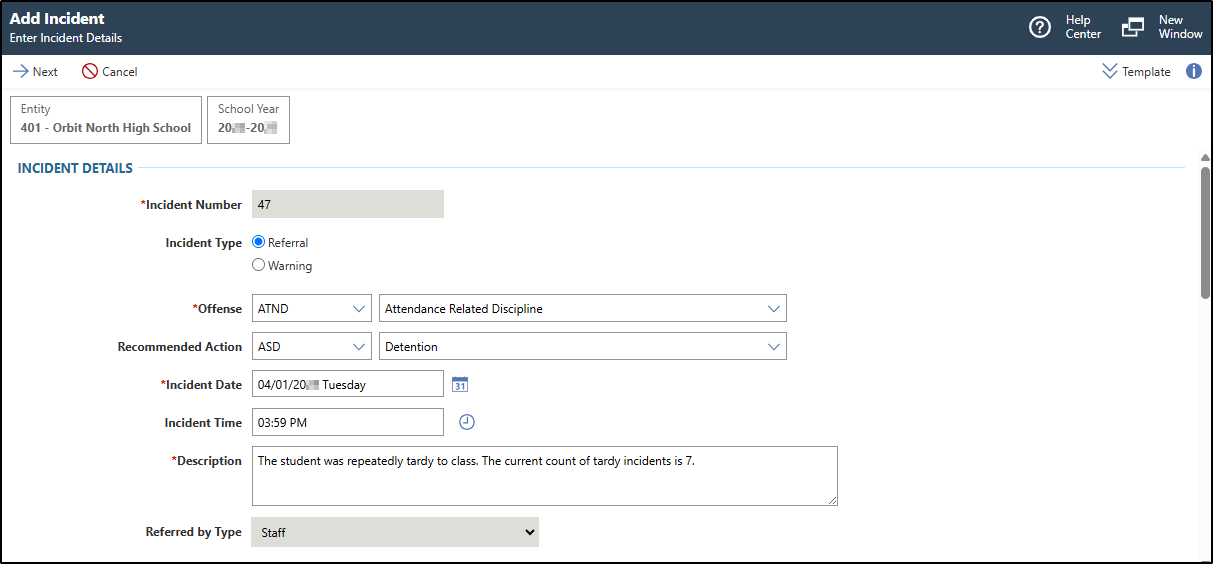
You see the Add Incident screen.
Complete the appropriate fields.
Required fields are identified with an asterisk. You must complete required fields before you can save your work.
Optional: Verify the Template near the top right of the screen or click the Chevron down icon to choose the correct template from the drop-down list.
If the workflow template you wish to use does not exist, you can create a new Workflow Template. If necessary, you can click Template near the top right of the screen to expand the workflow template area.
Under the Incident Details heading, verify the assigned Incident Number is correct.
This defaults to the next available number and cannot be modified.
Select the appropriate radio button for the Incident Type.
The Warning radio button only displays if the box for Warning is checked for the Allow field in the District Year Configuration of the Discipline module.
or click the Down Arrow icon to choose from the drop-down list.
If the box for Only One Offense Code Per Incident is checked for the Allow field in the District Year Configuration of the Discipline module, this field displays as
Offense. If the box is not checked, this field displays as Primary
Offense.
If you selected Referral as the Incident Type and the box for Action Recommendations
Connected to Referrals is checked for the Allow field in the
District Year Configuration of the
Discipline module, continue to the next sub-step.
If you selected Referral as the Incident Type and the box for Allow Action Recommendations Connected to Referrals is unchecked in the District Year Configuration of the Discipline module, skip to sub-step f.
If you selected Warning as the Incident Type, skip to sub-step f.
Enter the Recommended Action or click the Down Arrow icon to choose from the drop-down list, if appropriate.
Recommended actions enable the teachers entering referrals to suggest which action
they believe is appropriate for the offense committed by the student. For example,
you may have caught a student hitting another student, but due to the events leading
up to the offense, you wish to suggest a lesser punishment than would normally be
issued.
Verify the Incident Date or enter the correct date if necessary.
is checked in the
District Year Configuration of the
Discipline module, this defaults to the current date but can be modified if necessary.
Verify the Incident Time or enter the correct time if necessary.
If the box for Default Date and Times is checked in the
District Year Configuration of the
Discipline module, this defaults to the current time but can be modified if necessary.
Enter a Description to further define the infraction.
For example, you could indicate that student A punched student B.
Verify the name of the staff member in the Referred By field is correct.
This defaults to the name of the staff member creating the referral and cannot be modified.
Enter the Incident Location or click the Down Arrow icon to choose from the drop-down list, if appropriate.
This indicates the location within the building or premises where the location occurred. For example, if an incident occurred in the hallway, you could select Hallway. Additionally, if you track location, you can run a report to see the number of incidents occurring in each area.
Enter the Incident Building or click the Down Arrow icon to choose from the drop-down list, if appropriate. If you selected an Incident Building, enter the Incident Room if necessary.
This indicates the building where the incident occurred. For example, if an incident occurred at the high school, you could select the appropriate high school building. If you also know the room where the incident occurred, you can specify that as well.
is checked for the Allow field in the District Year Configuration of the Discipline module.
Verify the Cost or enter the correct value if necessary.
This defaults to 0.00, but can be modified if necessary. For example, if the student damaged school property during the incident, you could indicate the amount the student must pay to repair the damages.
Under the Offender / Involved Person heading in the Add Offender / Involved Person area, select Offender from the Involvement Type drop-down list.
You can click Add Offenders / Involved Persons near the bottom left of the screen if you wish to add another involved person type.
Refer to the Incident/Referral Field Selections reference table to complete the record.
You must add at least one offender to save the record.
Select Student from the Involved Person Type drop-down list.
Refer to the Incident/Referral Field Selections reference table if you wish to complete the incident/referral record for a different involved person type.
Select the appropriate radio button for the Student Filter Type.
This option filters the names available for selection in the Student Name field. If
you select District, you can choose students enrolled at any entity in the district.
If you select Entity, you can choose students enrolled in the specific entity you
are working in. If you select Class, you can only select students who are enrolled
in a class you teach.
The District and Entity radio buttons are enabled if the boxes for District and Entity are checked for the Allow Teacher Referrals for Students Within Their field within the District Year Configuration of the Discipline module.
Enter the Student Name or click the Down Arrow icon to choose from the drop-down list.
Selecting a name displays that student's Indicators
Check the box for Exclude Primary Offense if appropriate.
This
field only displays if the box for Only One Offense Code Per
Incident is not checked for the Allow field in the District Year Configuration of the
Discipline module.
If the box for Allow Only One Offense Code Per Incident is checked in the District Year Configuration of the Discipline module, skip to sub-step u.
If the involved person you are adding to the record was involved in secondary offenses but not the primary offense, you would check this box. If you check this box, the Primary Offense field to the right of this field defaults to blank and cannot be modified. If you do not check this box, the Primary Offense field defaults based on the Offense you selected and cannot be modified.
Enter one or more Secondary Offenses or click the Magnifying Glass icon to choose from the drop-down list, if appropriate.
This
field only displays if the box for Only One Offense Code Per
Incident is not checked for the Allow field in the District Year Configuration of the
Discipline module.
You can click Add Offenders / Involved Persons near the bottom left of the screen if you wish to add other offenders or involved persons to this referral or warning record. You can add as many offenders or involved persons as necessary. Entering all offenders or involved persons enables you to clearly document the incident that occurred and track who was involved without having to add multiple records to keep track of information in regard to the same event.
or click the Down Arrow icon to choose from the drop-down list, if appropriate.
If a student is already assigned to a particular discipline officer, this field defaults but can be modified if necessary.
For example, if you wish to indicate that a particular discipline officer is looking into this incident, you would enter their name in this field.
Enter a Statement for the incident if appropriate.
For example, you could enter a comment by the offending student about the incident or referral.
Enter the Perceived Motivation for the offender or click the Down Arrow icon to choose from the drop-down list, if appropriate.
For example, if a student hit another student in self-defense while being bullied, you could select Bullied to indicate the possible reason why the student committed the offense.
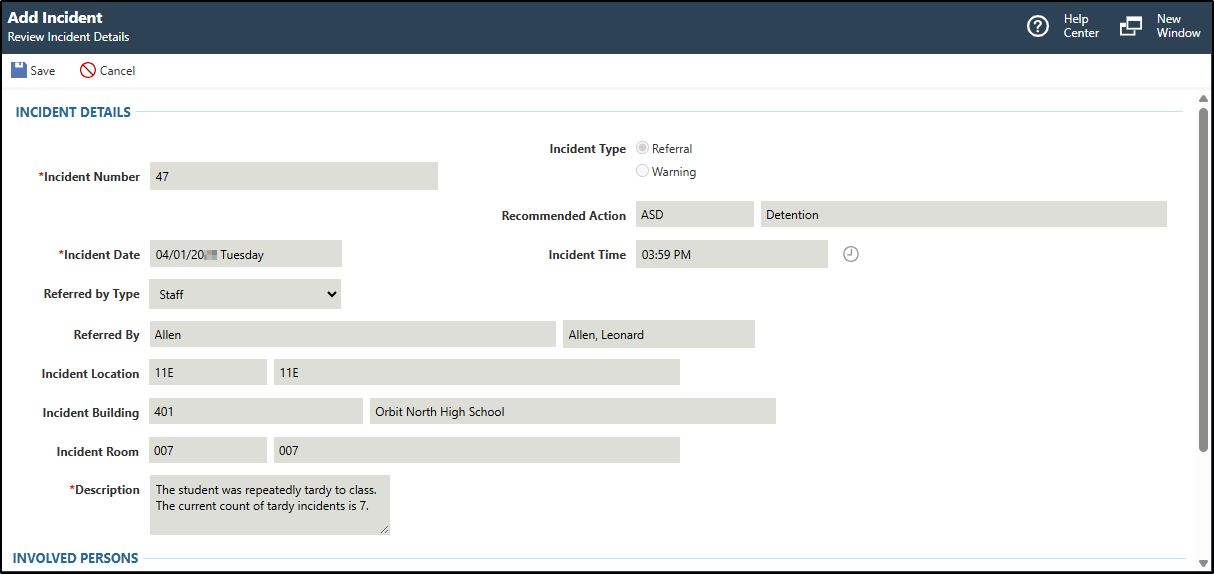
or warning you created under the Involved Persons heading. If notifications are configured for discipline referrals and warnings, they will be sent according to the parameters set up. A discipline officer can now review the referral or warning and process it within the Discipline module.
Result(s)
You have successfully created a discipline referral or warning via Teacher Access.