Report, My Report Queue, and Report Manager
The Reporting module of the software includes three different areas in which you can view, print, run, and edit reports: Report, Report Manager, and My Report Queue. What you are able to do in each area depends on your security access.
Scroll past the video to access the written information.
Audio Transcript
The Reporting module of the software includes three different areas in which you can view, print, run, and edit reports: Report, Report Manager, and My Report Queue. You must know how to navigate and use them to use the Reporting module to its fullest. First, let’s navigate to the Report feature. Here, we can run individual reports, and view their details by using the Record Options drop-down menu. Next, let’s navigate to the Report Manager feature. In this list, we can open individual reports, and can import or add a new report. Depending on a user's configurations, user-created reports can be edited here as well. Lastly, let’s navigate to the My Report Queue feature. Here, we can review historical information for any reports we have run as the currently logged in user. We can also open a report from this screen, as well as save it until a certain date, or re-run it if we want. Now that you know how to navigate to these screens in the software, you can rest assured that you can properly use the Reporting module.
The Reporting module of the software includes three different areas in which you can view, print, run, and edit reports: Report, Report Manager, and My Report Queue. You must know how to navigate and use them to use the Reporting module to its fullest. First, let’s navigate to the Report feature. Here, we can run individual reports, and view their details by using the Record Options drop-down menu. Next, let’s navigate to the Report Manager feature. In this list, we can open individual reports, and can import or add a new report. Depending on a user's configurations, user-created reports can be edited here as well. Lastly, let’s navigate to the My Report Queue feature. Here, we can review historical information for any reports we have run as the currently logged in user. We can also open a report from this screen, as well as save it until a certain date, or re-run it if we want. Now that you know how to navigate to these screens in the software, you can rest assured that you can properly use the Reporting module.
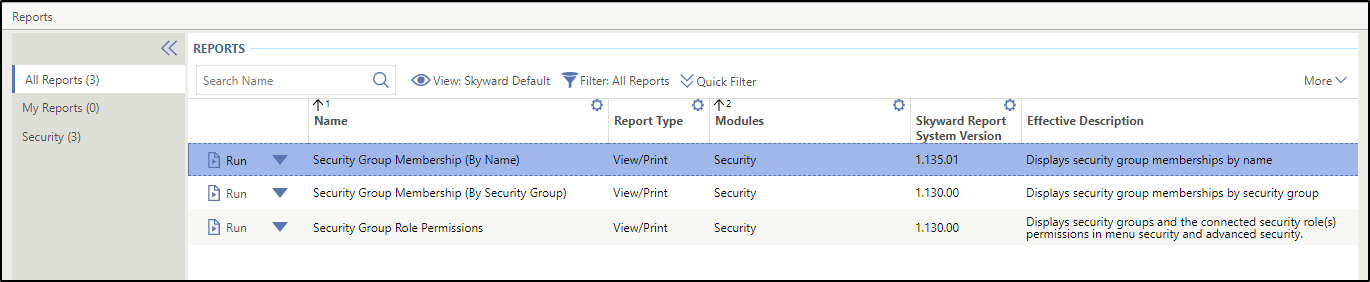
Typically, users who do not create reports but need to view them are only given access to the Report area. Here, users can run, or clone any reports that have been made available to them, as well as download and print them. Reports cannot be edited, modified, or deleted from this area. However, if you are a super user, you are able to process the same functions in the Report area that are available in the Report Manager area. The image below displays reports and functionality available within the Report area.
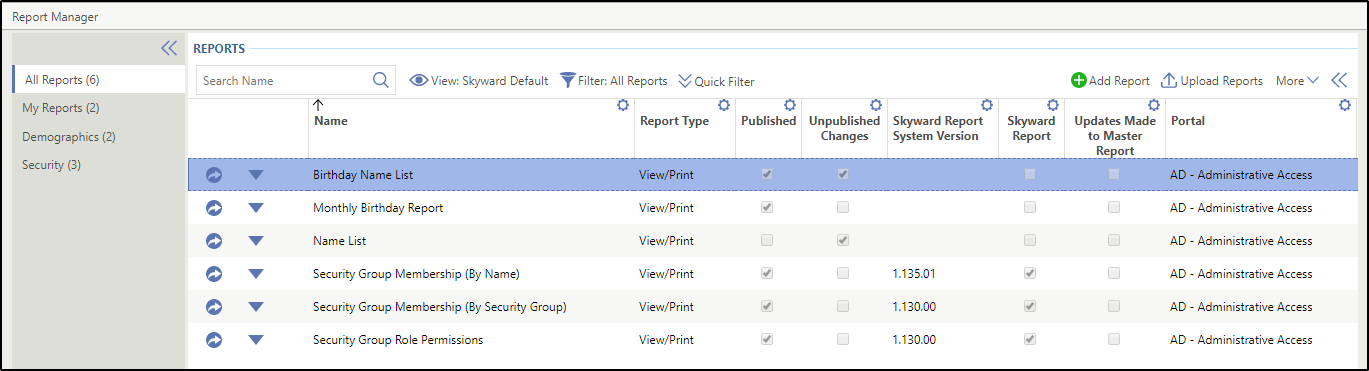
You can make updates to the design of a report in the Report Manager area of the Reporting module. This is also the only area where you can import or add a new report. Typically, only individuals who are authorized to create and maintain reports are given access to this area. All reports, including unpublished ones, are visible here. However, unpublished reports will only display for super users. Although you are able to run, print, and view all reports, you can only edit ones that you have created. If you need to make changes to a report generated by another user, you have the option to clone it and make changes. Super users are able to make changes to other users' reports. You also have the option to update the design of the report, which includes choosing which fields will be included and the overall appearance of the report. Once you have finalized your report setup, you can publish it for other users to view, or use one of the Run Options to obtain the report data in your desired format. You can refer to the table at the bottom of this topic to view other Report Run options. The image below displays reports and functionality available from the Report Manager area.
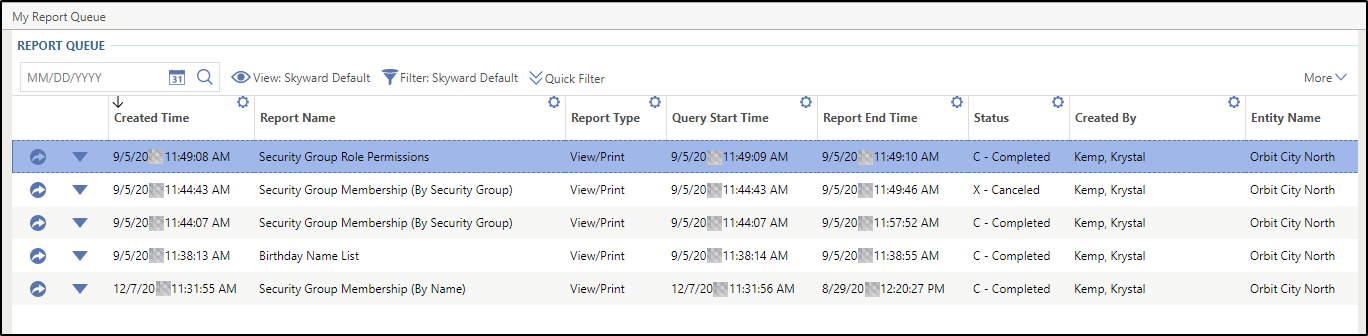
Any user who has access to run reports should also have access to My Report Queue in order to view historical information for any reports they have run. This is convenient if you need to view a report you already ran, but still need to print or download it. You are able to access the report without having to run it again. One benefit of this is that you do not need to save everything to your computer or ask another user to find a report for you because it is all stored in the database. The data in the report displays as it existed when you originally ran the report; the system will not pull in updated data. In the Status column, you can view the status of the report, which can be I - In Progress, E - Error, or C - Completed. The image below displays the My Report Queue area, which includes previous reports the user has run.
You can also rerun a report if you want to pull in current data. For example, if you have a Name List report in My Report Queue from yesterday, the system pulled the names as of yesterday. Rerunning the report on the current day will pull any new names that were added to the database today into the report. You can also select the Down Arrow icon to view your run options for each report based on what area of the software you are in and what you have been given access to.
Once you run a report, the system has many options for you to generate the report data in your desired format. The table below lists the different options available once you generate a report with a Report Type of View/Print.
If you have selected any other Report Type, a screen appears prompting you to download the report in the selected format or run the report specifications.
| Run Option | Description |
|---|---|
| Rerun Report | Enables you to rerun the report with different parameters. The system opens the Run Report screen so you can enter new report prompts to generate new report data. While the report is running, this option is unavailable. This option is only available once the report is fully processed. |
| Cancel Report | Enables you to stop the report while it is running. For example, if this is a large report and you only need to view the first few pages, you could prevent the report from continuing to run. This option is only available while the report is running. Once the report is fully processed, this option becomes unavailable. |
| View Query | Enables you to view the parameters used to generate the report results. |
| Save Until | Enables you to save the report until the date you specify. This is based on the settings in the System Configuration of the Reporting module. If you elect to save the report results for longer than the default, the Save Until date should be updated. |
| Export to XLSX | Enables you to open or save the report as a .xlsx file. While the report is running, this option is unavailable. This option is only available once the report is fully processed. |
| Download | Enables you to download the report and save the report in the desired file type, such as PDF or ZIP. While the report is running, this option is unavailable. This option is only available once the report is fully processed. |
| Enables you to create a PDF of the report in a new screen and print according to your browser settings. While the report is running, this option is unavailable. This option is only available once the report is fully processed. | |
| Run Report Specifications | Enables you to generate a report that provides details about how the report was configured, including information regarding the prompts and the sections included on the report. If you have previously run the report specifications, you see the View Report Specifications option instead. |
| Export to CSV | Enables you to open or save the report as a .csv file. While the report is running, this option is unavailable. This option is only available once the report is fully processed and always displays under the List Options drop-down menu when you click the More option. |